
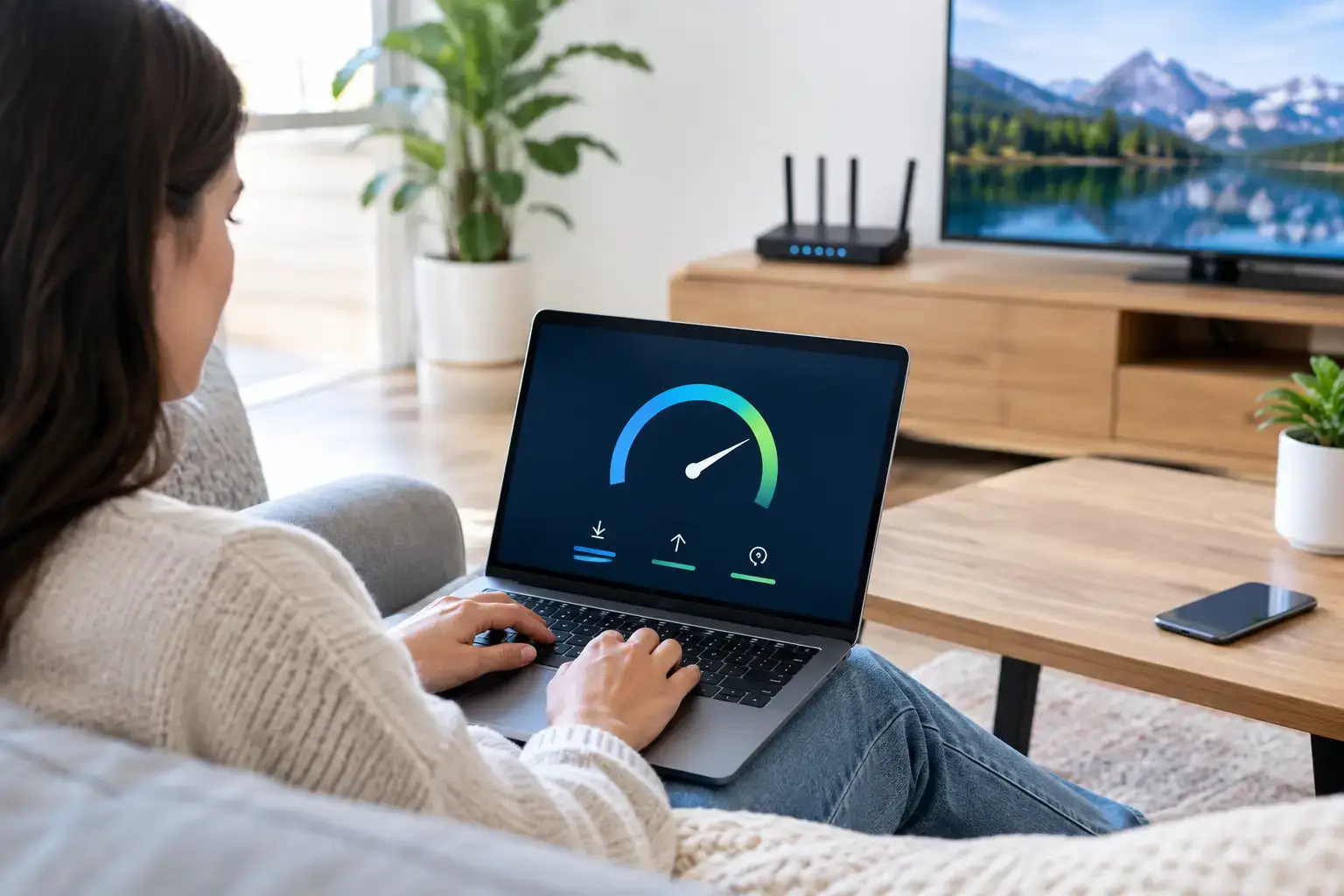
A speed test can take less than a minute, but a careless test can give you the wrong answer. If you want to know how to test internet speed accurately, test the connection under controlled conditions first, then repeat the test in the places and at the times you actually use the internet.
That distinction matters. A result measured on a laptop beside the router tells you something different from a result measured in a back bedroom while two TVs are streaming. Both can be useful, but they point to different possible problems: the internet service coming into your home, or the Wi-Fi carrying that service around your home.
How to Test Internet Speed Accurately
Start by choosing one device and limiting activity on the network. Pause large downloads, cloud backups, game updates, and streaming on other devices if possible. You are trying to measure the connection, not compete with everything else using it.
For the most reliable baseline, connect a computer directly to your router with an Ethernet cable. Turn off the computer’s Wi-Fi while you test so it does not accidentally use the wireless network instead. Then run a reputable browser-based speed test or app two or three times, waiting a minute between tests.
Testing more than once is worthwhile because internet traffic changes throughout the day. If the results are broadly similar, use the average as your baseline. If one result is dramatically lower than the others, run another test rather than assuming the lowest number is the answer.
A wired test is not always convenient, especially for renters whose router is in an awkward location. It is still the clearest way to separate an internet service issue from a Wi-Fi issue. If the wired result is close to your plan’s expected speed but Wi-Fi results are much lower, your service may be fine and your home wireless setup may need attention.
What a Speed Test Actually Measures
Most speed tests report three numbers: download speed, upload speed, and latency. Each affects a different part of the online experience.
Download speed is how quickly your connection receives data. It affects video streaming, website loading, app downloads, and game downloads. For a typical household, 100 Mbps is a practical starting point. Homes with several active users, multiple 4K streams, regular video calls, and connected devices often benefit from 300 to 500 Mbps. Heavy-use households may find 1 Gig service or more worthwhile, particularly when several people work, learn, stream, or game at the same time.
Upload speed is how quickly your connection sends data out. It matters for video calls, sending large files, cloud backups, security cameras, and livestreaming. Upload speed deserves extra attention if someone works from home or regularly joins video meetings. A plan can have strong download speed but more limited upload capacity, particularly on some cable-based services.
Latency, often shown as ping and measured in milliseconds, is delay. Lower is generally better. Latency matters most for real-time activities such as video calls, online gaming, remote desktop work, and voice chat. A household can have high download speed and still experience lag if latency is unusually high or inconsistent.
Some tests also show jitter, which is variation in delay. A little variation is normal. Large swings can cause choppy calls, robotic audio, or lag spikes in games even when the advertised speed looks sufficient.
Test Both Ethernet and Wi-Fi
A wired result answers, “How fast is the connection reaching my router?” A Wi-Fi result answers, “How well does my wireless network serve this device in this spot?” You need both answers when troubleshooting a home connection.
After getting a wired baseline, repeat the test over Wi-Fi in the rooms where people use the internet. Test near the router, then test in the office, primary bedroom, basement, or other trouble spot. Keep notes on the room, device, time, and result. You do not need a spreadsheet unless you enjoy one, but a few notes make patterns easier to see.
A lower Wi-Fi number is normal. Wireless signals weaken through walls, floors, brick, metal, plumbing, and dense furniture. Distance matters too. The goal is not necessarily to match a wired Gig-speed result on every phone in every corner of the house. The goal is for each important area to have enough stable speed for what happens there.
For example, a bedroom used for video calls and streaming needs more consistent performance than a hallway used to check email. If the wired test is strong but one room is weak, moving the router, updating older equipment, or adding a properly placed mesh Wi-Fi node may help more than changing your internet plan.
Avoid the Most Common Testing Mistakes
Testing right next to the router is useful as a Wi-Fi benchmark, but it does not prove the whole house has good coverage. Likewise, testing on an older phone or laptop can understate what your connection can do. Older devices may not support newer Wi-Fi standards or may have slower network hardware.
Do not test while connected to a virtual private network, often called a VPN, unless you specifically want to measure performance through that VPN. VPNs can add distance and overhead, which may lower speeds or increase latency.
Also check which Wi-Fi band your device is using. Many routers offer 2.4 GHz and 5 GHz connections, and some also support 6 GHz. The 2.4 GHz band generally reaches farther but can be slower and more crowded. The 5 GHz band usually offers better speed at closer range. A device may switch bands automatically, so results can differ even when you test from the same chair.
Browser extensions, background apps, automatic updates, and a nearly full computer can also affect results. If one device produces consistently poor tests while another device in the same location performs well, the issue may be with that device rather than your internet service.
Test at Different Times Before You Call
Run tests during the time when the problem is most noticeable. If streaming buffers every evening around 8 p.m., a midmorning test may look excellent and tell you very little. Test once during a quiet period and again during the busy period for a more useful comparison.
If you share a connection with family members, also test during normal use. That does not create a perfect controlled measurement, but it reveals whether your plan has enough capacity for your real household. A connection that performs well only when everyone else is offline is not necessarily meeting your needs.
Keep in mind that a speed test uses a nearby testing server. The result may not match every website, game server, or streaming service. If only one app is slow while everything else works normally, the issue could be on that app’s side or along the route to its servers.
When Your Results Seem Too Slow
First, compare your wired average with the speed tier you pay for. Actual results can vary, and a plan’s advertised maximum is not a promise that every device will always see that exact figure. Still, a repeated wired result far below your plan’s expected range is worth investigating.
Restart the modem and router by unplugging them for about 30 seconds, then allowing them to reconnect fully. Check cables for loose connections or visible damage. If you use separate modem and router equipment, make sure you are testing from the router’s main network rather than a guest network.
If the wired result remains low across multiple tests and times, document the results before contacting your provider. Include the date, time, wired or Wi-Fi connection type, device used, and the download, upload, and latency readings. Clear information makes it easier to explain the problem and determine whether it is a service issue, equipment issue, or a problem inside the home.
A good speed test is not about chasing the biggest number on the screen. It is about finding out whether your connection is dependable where your household actually uses it – and giving yourself enough information to fix the right problem.