
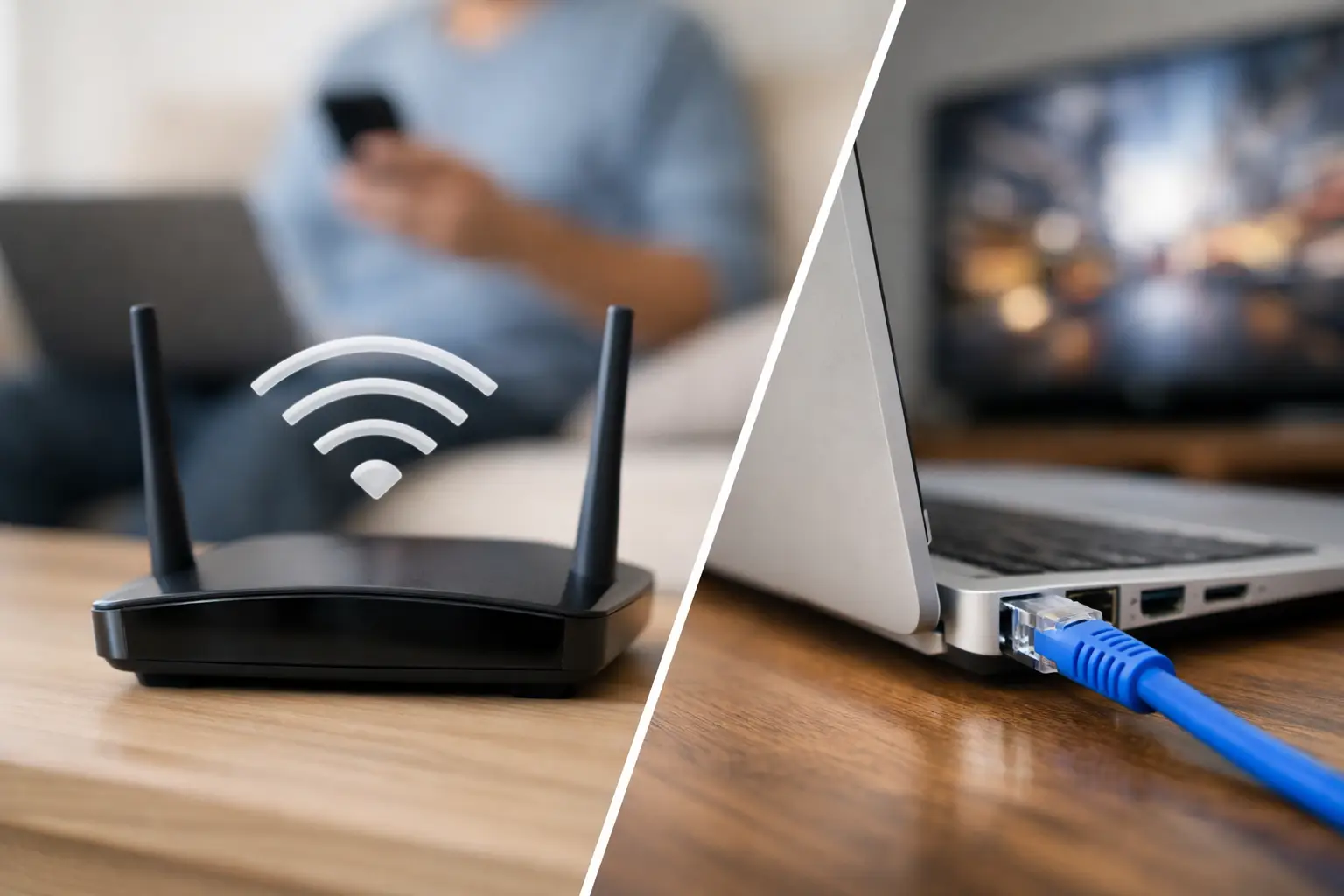
A speed test that looks great on an Ethernet cable but disappointing over Wi-Fi is frustrating, especially when you pay for a fast internet plan. The short answer to why wifi is slow but ethernet fast is that Ethernet uses a direct, protected cable connection, while Wi-Fi has to send data through the air and around everything in your home.
That difference does not automatically mean your internet service is the problem. In fact, a strong wired result is usually good news: it shows that your modem, router, and internet plan can deliver close to the speed you expect. The problem is more likely somewhere between the router and the wireless device.
Why WiFi Is Slow but Ethernet Is Fast
Ethernet is simple. A device connects to your router with a cable, creating a dedicated path for its data. The connection is not affected by walls, nearby networks, cordless devices, or where you are sitting. Modern Ethernet connections can comfortably support the speeds used by most home internet plans, provided the router, cable, and device ports are capable of it.
Wi-Fi is different because every wireless device shares radio space. Your phone, TV, laptop, game console, smart speaker, and doorbell may all compete for time on the same network. The Wi-Fi signal also loses strength as it passes through walls, floors, furniture, plumbing, and appliances.
A wired speed test measures the internet connection arriving at your router. A Wi-Fi speed test measures that same connection plus the quality of the wireless link in that particular spot, on that particular device, at that particular time. That is why a 500 Mbps plan might test near 500 Mbps over Ethernet but only reach 80 Mbps in an upstairs bedroom.
The Most Common Reasons for the Gap
Distance and building materials weaken the signal
Distance is one of the biggest reasons Wi-Fi slows down. A router may cover a whole house well enough for browsing, but coverage is not the same as high-speed coverage. A device can still show a few Wi-Fi bars while receiving a connection too weak for 4K streaming, video meetings, or large downloads.
Drywall usually has a modest effect. Brick, concrete, plaster, tile, metal, radiant-floor heating, mirrors, and large appliances can have a much greater effect. In a multistory home, the floor between the router and your device can be more damaging than the distance itself.
Your device may be using the wrong Wi-Fi band
Most current routers offer 2.4 GHz and 5 GHz Wi-Fi, and many newer models also offer 6 GHz. The 2.4 GHz band generally reaches farther and handles walls better, but it has less capacity and more interference. It is often best for smart-home devices and devices far from the router.
The 5 GHz band is typically faster and less crowded, but its range is shorter. The newer 6 GHz band can provide excellent performance at close range on compatible devices, though it also does not travel through walls as well as 2.4 GHz.
Many routers automatically choose a band for each device. Usually that works well, but not always. A phone or laptop may hold onto 2.4 GHz even when 5 GHz would be faster, or it may use a distant 5 GHz signal that is no longer reliable.
Nearby Wi-Fi networks create congestion
Apartment buildings, townhomes, offices, and closely spaced homes can have dozens of nearby Wi-Fi networks. They share a limited number of radio channels. When several routers use the same or overlapping channels, devices must wait their turn to transmit data.
Congestion tends to be most noticeable in the evening, when more people are home streaming, gaming, and using connected devices. Your wired connection can remain steady during those periods because it does not depend on the crowded wireless airspace.
The router may be poorly placed
A router tucked inside a cabinet, placed behind a television, or installed in a far corner of the house starts at a disadvantage. Wi-Fi spreads outward from the router, so a central, open, elevated location usually provides better coverage than a hidden one.
This is especially common when internet service enters the home through a basement, utility room, or exterior wall. That location may be convenient for installation, but it is rarely the best place to serve the rooms where people actually use Wi-Fi.
Older equipment limits faster service
Your internet plan may be fast, but older routers and devices can hold back Wi-Fi performance. A router that only supports older Wi-Fi standards may struggle with several active users. An older laptop, budget tablet, or streaming device may have a slower wireless adapter than your phone or a newer computer.
This is why it helps to test more than one device. If a newer phone gets 350 Mbps near the router and an older laptop gets 40 Mbps in the same place, the laptop is likely the limiting factor. Replacing the router would not necessarily solve that specific problem.
Wireless extenders can trade speed for reach
A basic Wi-Fi extender can improve coverage in a dead zone, but it often reduces available speed because it receives and retransmits data over Wi-Fi. It can be useful for light browsing or smart-home devices, yet it may not be ideal for a busy home office, gaming setup, or main streaming TV.
A mesh Wi-Fi system can be a better fit for larger homes, although results depend on where the mesh units are placed. A mesh point still needs a strong connection back to the main router. If possible, using Ethernet to connect mesh units, sometimes called wired backhaul, delivers more consistent results.
How to Find the Actual Problem
Start with a wired speed test connected directly to the router. Use a computer with a gigabit Ethernet port, a known-good cable, and no active downloads if possible. If that test is close to the speed of your plan, your service is probably performing normally.
Then run a Wi-Fi test on a recent phone or laptop while standing a few feet from the router. Make sure the device is connected to the home network, not cellular service. If Wi-Fi is slow even at close range, restart the router and modem, check for router firmware updates, and look at the router’s band and channel settings.
If Wi-Fi is fast near the router but slow in other rooms, the issue is coverage rather than incoming internet speed. Walk through the home and test the rooms where performance matters most. Pay attention to places used for video calls, streaming TVs, work computers, and game consoles. One weak room may call for a mesh point or an access point, not a new internet plan.
When comparing results, test at more than one time of day. A single test can be misleading if someone is downloading a game, backing up photos to the cloud, or streaming several videos. Also remember that speed is not the only factor. High latency, connection dropouts, and buffering can point to a weak or congested Wi-Fi signal even when a test result looks reasonable.
Practical Fixes That Usually Help
Move the router before buying new equipment. Put it in an open, central location if the cable or fiber setup allows it, keep it off the floor, and avoid enclosing it in furniture. Even a move of a few feet can make a noticeable difference.
Use 5 GHz or 6 GHz for newer phones, computers, and streaming devices located near the router. Keep 2.4 GHz available for distant devices and smart-home equipment that does not need much speed. If your router combines all bands under one network name, its app or settings may still let you check which band a device is using.
For homes with large coverage gaps, consider a mesh system sized for the layout of the home. A two- or three-node system is often more effective than one powerful router trying to reach every corner. Place nodes in areas that still receive a good signal, not inside the dead zone itself.
Use Ethernet where it makes the biggest difference. A wired connection is especially worthwhile for a desktop work computer, gaming console, media server, or main streaming device. It reduces Wi-Fi traffic for everything else and gives those devices a steadier connection.
Finally, make sure your internet plan fits your household. For most homes, 100 Mbps is a practical minimum starting point. Active families with several people streaming, gaming, working remotely, and using smart devices will often be better served by 300 to 500 Mbps. Gig-speed service can make sense for heavy-use households, but it will not fix weak Wi-Fi by itself.
A fast Ethernet result gives you a useful clue, not a reason to immediately upgrade your plan. Improve the wireless path first, then judge whether your current service still meets the way your household uses the internet.