
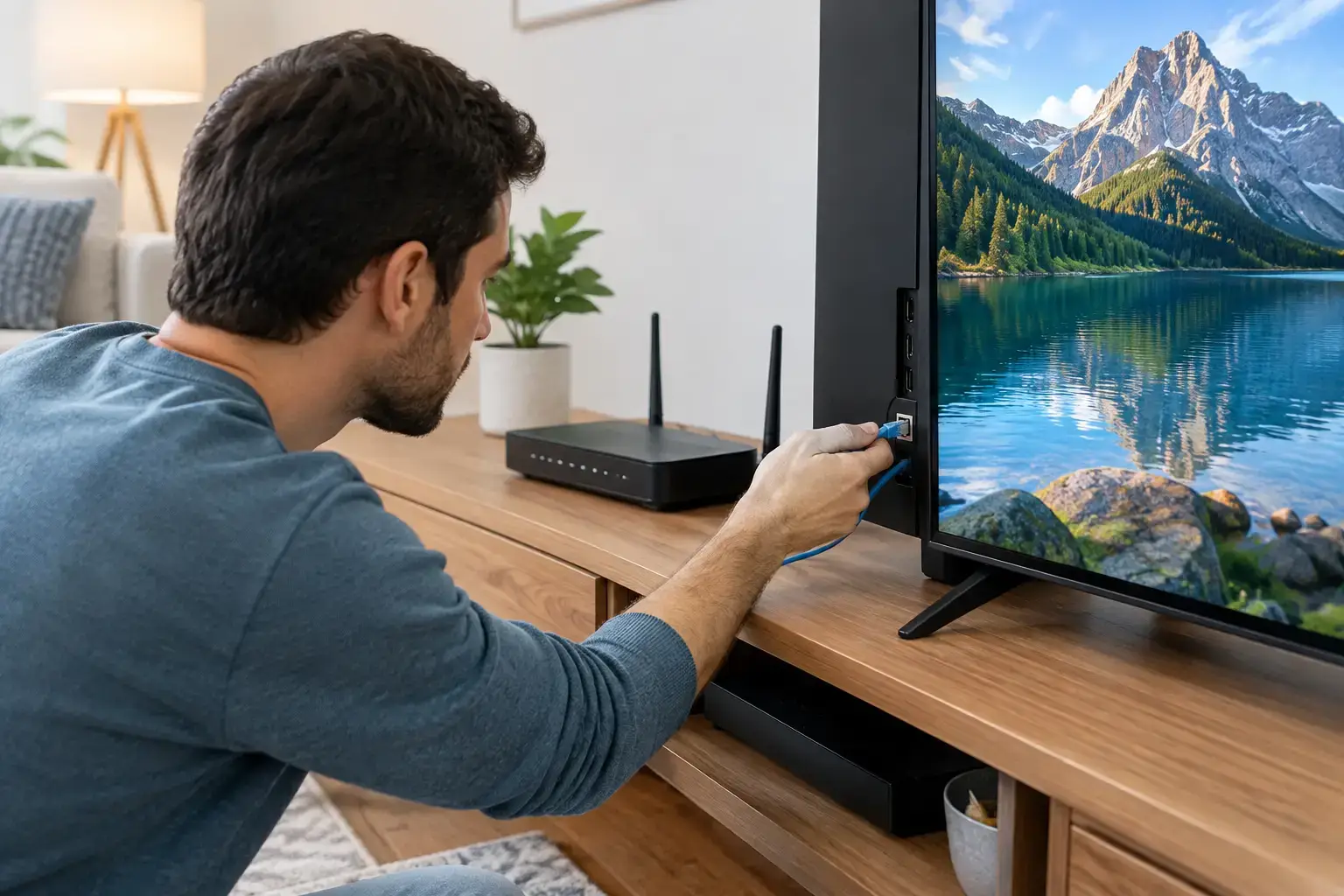
A smart TV Ethernet connection is often the simplest way to make streaming more reliable. If your TV is close enough to the router, a wired connection can prevent the random buffering, picture-quality drops, and app disconnects that sometimes happen on Wi-Fi.
That does not mean every TV needs an Ethernet cable. Good Wi-Fi can handle 4K streaming just fine in many homes. The better choice comes down to where the TV sits, how busy your network is, and whether you are solving a real problem or simply planning a more dependable setup.
What Smart TV Ethernet Means
Ethernet is the wired network connection on the back or side of many smart TVs. It looks similar to a large phone jack and is usually labeled LAN or Ethernet. Connecting that port to an open port on your router with an Ethernet cable gives the TV a direct path to your home network and internet connection.
Wi-Fi sends data through the air, where walls, distance, nearby networks, and household devices can interfere. Ethernet sends data through a cable. That makes the connection more consistent and usually lowers the chance of temporary slowdowns or dropouts.
For a TV, reliability generally matters more than raw speed. Streaming apps do not need a massive amount of bandwidth compared with a computer downloading a large game or backing up files to the cloud. They do, however, need a steady connection. A brief Wi-Fi disruption can be enough to make a show pause, lower its resolution, or cause an app to display an error.
When a Wired TV Connection Is Worth It
Ethernet makes the most sense when the TV has recurring Wi-Fi trouble or when it is part of a busy home network. A cable is especially helpful if the television is far from the router, located in a basement or garage conversion, or separated by several walls and floors.
It can also help households where multiple people stream, game online, join video meetings, use security cameras, or run many connected devices at once. Wiring one heavily used device, such as the main living room TV, takes some traffic off Wi-Fi and gives that device a more predictable connection.
Consider using Ethernet if you regularly notice any of these issues:
- Streaming apps buffer even though phones and computers seem connected.
- The TV loses Wi-Fi or asks you to reconnect to the network.
- 4K movies start in a soft or lower-quality picture and take a long time to sharpen.
- The TV is near the router, so running one cable would be easy.
- You use live TV streaming, cloud gaming, or other services that are more sensitive to interruptions.
A wired connection will not fix every streaming problem. If your internet service slows down during peak hours, your router is malfunctioning, or the streaming service itself has an outage, Ethernet cannot solve that. But it removes Wi-Fi as one possible weak link.
Is Smart TV Ethernet Faster Than Wi-Fi?
It depends on the TV and your Wi-Fi equipment. A modern Wi-Fi 6 or Wi-Fi 7 router can deliver higher top speeds than the Ethernet port built into many smart TVs. That may sound surprising, but many televisions still use a 100 Mbps Ethernet port rather than a 1 Gig port.
For streaming, that limitation rarely matters. Netflix, Max, Disney+, and similar services generally use far less than 100 Mbps for a single 4K stream. A 100 Mbps wired port has plenty of capacity for movies, shows, and live TV. Its advantage is stability, not necessarily a higher speed-test result.
In fact, a speed test on a TV connected by Wi-Fi may occasionally show a bigger number than one connected by Ethernet. If both connections stream reliably, that difference is not a reason to choose Wi-Fi. The TV only needs enough speed to support what you watch, with room for other activity in the home.
For a typical household, 100 Mbps is the practical minimum starting point for internet service. Homes with several active users, multiple streams, video calls, gaming, and smart-home devices are usually better served by 300 to 500 Mbps. A 1 Gig plan can make sense for heavy-use households, especially when many people are online at the same time. Still, the connection between your router and TV can be the issue even when your internet plan is fast.
How to Connect a Smart TV to Ethernet
The setup is usually straightforward. You need an Ethernet cable long enough to reach from the router, mesh system node, or network switch to the TV. A Cat5e or Cat6 cable is a good choice for nearly every home setup. There is no need to buy an expensive specialty cable for TV streaming.
Plug one end into an available LAN port on the router or mesh node and the other into the TV’s Ethernet port. Then open the TV’s Settings menu and look for Network, Internet, or Connection settings. Most TVs recognize the cable automatically and switch from Wi-Fi to a wired connection. Others may ask you to select Wired Network or Ethernet.
After connecting, open a streaming app you use frequently and play a program. If the app works normally, the connection is likely active. Many TVs also show a network status screen that confirms whether the wired connection has internet access.
If the TV remains connected to Wi-Fi after the cable is installed, turn off Wi-Fi in the TV’s network settings or restart the television. The exact menu labels vary by brand, but the basic process is similar on Roku TVs, Fire TVs, Google TVs, Samsung, LG, Sony, and other models.
What if the Router Is Too Far Away?
Running a cable across a room is not always practical, particularly for renters or TVs mounted on a wall. In that case, improve Wi-Fi before buying extra equipment. Move the router into a more open, central location if possible, and avoid placing it inside a cabinet or behind the TV. If you use a mesh Wi-Fi system, placing a mesh node closer to the TV may provide an excellent connection without a visible cable.
A wired mesh node is another option. You can run Ethernet from the router to a nearby mesh node, then connect the TV to that node with a short Ethernet cable. This is useful when the main router is in another room but you can bring a wired connection partway through the home.
Powerline adapters, which send network data through electrical wiring, are sometimes considered for distant TVs. Results vary greatly by home and electrical circuit, so they are not as predictable as Ethernet or a well-placed mesh system. They can be worth testing when running cable is impossible, but keep the packaging and confirm the return policy.
Check the Whole Path, Not Just the TV
A wired TV can still perform poorly if another part of the network is causing trouble. Start with the physical connection. Make sure the Ethernet cable clicks firmly into the TV and router, and try a different router port or cable if the TV cannot get online.
Next, check whether the router has enough open ports. Many basic routers have only a few LAN ports. An inexpensive unmanaged Ethernet switch can add more ports if you need to connect a TV, game console, desktop computer, and other wired devices. Connect the switch to the router, then connect devices to the switch.
If streaming problems persist, test internet performance on a phone or computer near the TV. If every device is slow, the issue may be your internet service, router placement, or overall household demand. If only the TV is affected, restart the TV and router, update the TV software, and check whether the specific streaming app needs an update.
When Wi-Fi Is the Better Choice
Wi-Fi is perfectly reasonable when the TV already streams consistently and adding a cable would create a hassle. A TV in a bedroom, guest room, or lightly used space may not benefit enough from Ethernet to justify running wire through walls or along baseboards.
Wi-Fi also gives you flexibility when rearranging furniture or moving to a new home. With a strong signal and a modern router, most smart TVs can stream HD and 4K content without difficulty. The goal is not to wire every device in the house. It is to use a wired connection where it solves a real reliability problem.
If the main TV is the center of your household’s entertainment and it sits within easy reach of a router or mesh node, Ethernet is a low-effort upgrade that can remove one common source of streaming frustration. If Wi-Fi is already dependable, keep using it and save the cable for the device that needs it most.