
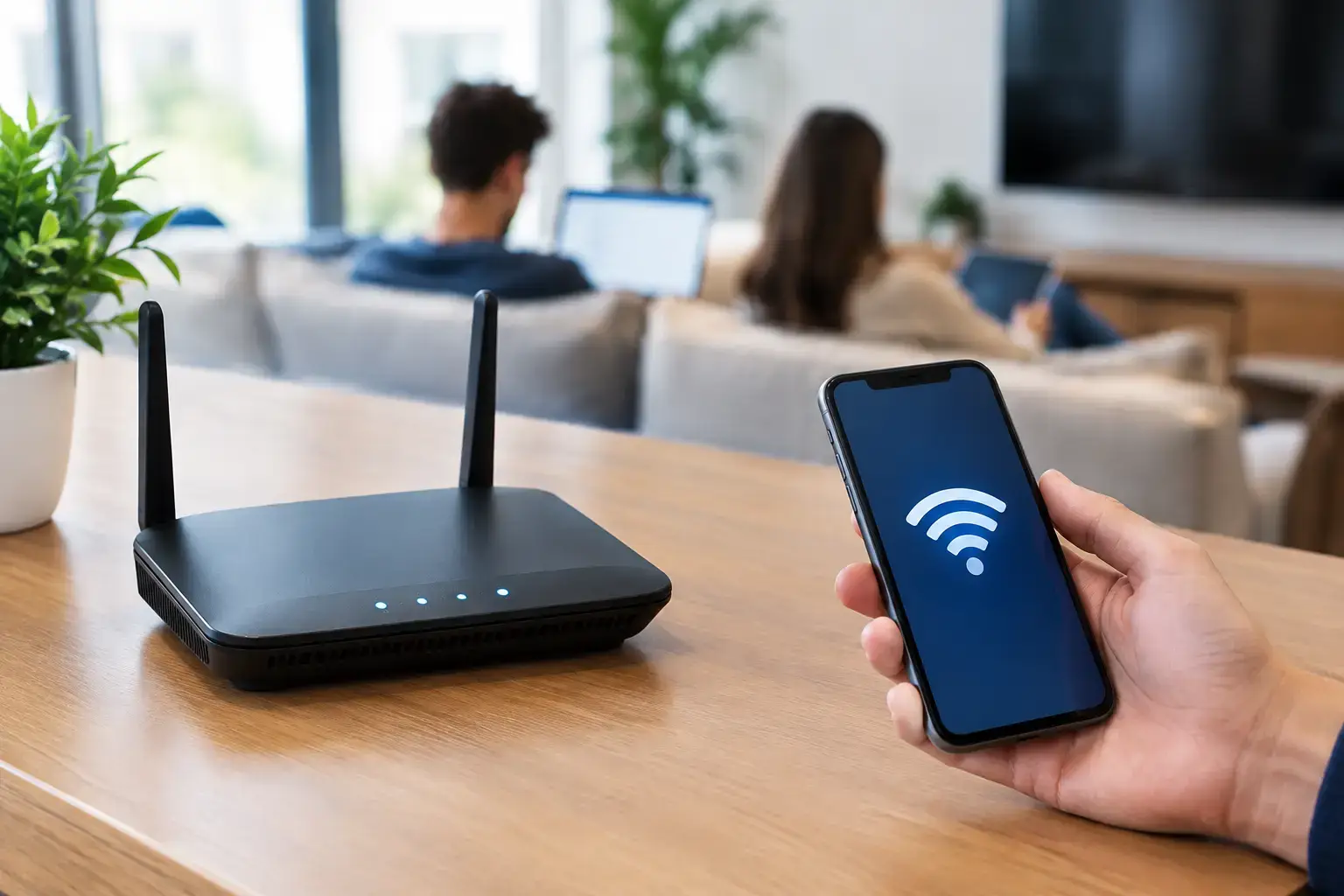
Someone visiting your home should be able to get online without gaining access to your printer, laptop, security cameras, or other connected devices. That is the reason to learn how to enable guest WiFi. A guest network gives visitors their own Wi-Fi connection while keeping it separate from the network your household uses every day.
Most current routers, mesh Wi-Fi systems, and internet-provider gateways include this feature. Setup usually takes only a few minutes, whether you use a router app or sign in through a web browser. The exact labels differ by brand, but the settings are generally straightforward.
What guest WiFi does and does not do
Guest WiFi creates a second wireless network from the same router. It has its own network name, often called an SSID, and its own password. Your guests use that network instead of your main Wi-Fi name.
The key setting is usually called guest isolation, access local network, or allow guests to see each other and local devices. When isolation is enabled, devices on the guest network should not be able to reach devices on your main home network. That means a guest can browse, stream, and make video calls, but should not be able to open files on a shared computer or connect to a smart-home control hub.
Guest WiFi is useful for visitors, contractors, house cleaners, and friends who stop by regularly. It can also be helpful for short-term rental properties and small offices with customer or visitor access.
It is not a complete substitute for good router security. You still need a strong main Wi-Fi password, current router software, and secure account credentials for your router app or administration page.
How to enable guest WiFi
Before you begin, make sure your phone or computer is connected to your home network. You will also need access to the router app or router settings page. If your internet service came with a combined modem and Wi-Fi router, the settings may be in your provider’s equipment app rather than a separate router app.
1. Open your router’s app or settings page
Many newer routers and mesh systems are managed through a phone app. Look for sections called Wi-Fi, Wireless, Network, Guest Network, or Guest Access.
For routers managed in a browser, enter the router’s local address in the address bar and sign in. The address, default sign-in details, and setup instructions are often printed on the router label. If you changed the login before and no longer remember it, avoid resetting the router unless necessary. A reset can erase your Wi-Fi name, password, and other settings.
2. Find the guest network setting
Look for a toggle or button labeled Guest WiFi, Guest Network, or Guest Access. Turn it on. Some systems let you create separate guest networks for the 2.4 GHz and 5 GHz Wi-Fi bands, while others combine them under one name.
For most homes, one guest network is easiest for visitors to use. If the router offers a choice of bands, use the same combined or automatic option used by your main network unless you have a specific reason not to.
The 2.4 GHz band reaches farther and works with many older devices, but it is often more crowded and slower. The 5 GHz band typically provides better performance at shorter distances. Wi-Fi 6E and Wi-Fi 7 routers may also offer a 6 GHz band, though many guests’ devices will not support it yet.
3. Choose a clear network name
Give the guest network a name your visitors can recognize without revealing personal details. Something like “Maple Street Guest” is better than using your full name, apartment number, or the default name printed on the router.
Avoid making the guest network name too similar to your main network. Clear names reduce the chance that family members accidentally connect their personal devices to the guest network and then wonder why they cannot print or use local smart-home controls.
4. Set a strong, shareable password
Do not leave guest WiFi open unless you have a very specific reason to do so. An open network lets anyone nearby connect, not just the person you invited.
Use a unique password that is easy enough to share verbally but not obvious. A short phrase with a few numbers works well. Do not reuse the password from your main Wi-Fi network. If you share guest access through a QR code in your router app, guests can join without typing the password.
Choose WPA3 security if the router offers it and all expected devices can connect. WPA2/WPA3 mixed mode is often the practical choice because it supports newer devices while remaining compatible with older phones, tablets, and laptops. Avoid older security options such as WEP or WPA when possible.
5. Keep guest access separate from your home network
This is the setting that matters most. Turn off any option that allows guests to access your local network, home devices, shared folders, or network resources. The wording varies, but the goal is the same: guest devices should reach the internet, not the rest of your network.
Some routers also offer an option that prevents guest devices from seeing one another. Enable it if available, particularly if you have frequent visitors or operate a small business. It adds another layer of privacy between connected guests.
There are exceptions. If you want a guest to print from their laptop or cast to a television on your main network, isolation may block that connection. In that case, it is usually safer to connect that person temporarily to the main network than to leave guest access to local devices enabled all the time.
6. Save the settings and test it
Save or apply your changes, then connect a phone to the guest network. Confirm that it can access the internet. Next, try to open a device-management app, find a network printer, or cast to a device that is connected only to your main network. Those local devices should not appear.
If the guest network connects but has no internet access, restart the router after confirming that your main network is online. If it still does not work, check whether the guest network has a separate internet access toggle or a schedule that limits when it is active.
Settings worth checking before you share the password
Guest WiFi does not need to be complicated, but a few optional settings can make it more useful. Consider turning on a guest network schedule if you only need access during certain hours. A short-term rental owner, for example, may prefer a network that automatically turns on and off around check-in periods.
Bandwidth controls can also be helpful, but use them carefully. If your household has a 300 to 500 Mbps plan or faster, most visitors will not create a problem during ordinary use. Limits may make sense if multiple guests are streaming 4K video, downloading large files, or using video calls while your own household is gaming or working from home.
A 100 Mbps connection is a practical minimum for a typical household, but guest activity can become noticeable when several people use it at once. Active families and multi-device homes generally benefit from 300 to 500 Mbps, while heavy-use homes may need 1 Gig service or higher. Still, poor Wi-Fi coverage can feel like a speed problem even when the internet plan is fast enough.
When guest WiFi may not be available
Older routers may not support a guest network. Some basic internet gateways also limit the feature or hide it in an advanced settings section. If you cannot find it, search the router’s app or settings for “guest,” then check the device model documentation from the manufacturer.
You can create a basic workaround by changing your main Wi-Fi password after visitors leave, but that is inconvenient and disconnects every device in your home. Adding a modern router or mesh Wi-Fi system is usually the better long-term solution if your current equipment lacks guest controls or has weak coverage.
Do not confuse a guest network with a separate internet service. Guest WiFi uses the same internet plan and the same overall connection as your household. It separates access inside your home, but it does not provide extra bandwidth or a second bill.
Common guest WiFi problems
If guests cannot see the network, first make sure it is enabled and that the router saved the change. Some routers need a reboot before a new network name appears. Have the guest forget the network on their device and search again if an old saved connection is causing trouble.
If a smart TV, printer, or streaming device cannot be found from the guest network, that may be normal. Network isolation is doing its job. Connecting the device and controller to the same network is required for many local features, including wireless printing and casting.
If the signal is weak in a guest room, patio, or office, guest WiFi will not fix a coverage problem by itself. The guest network uses the same router and Wi-Fi equipment as your main network. Moving the router to a more central location, adding a mesh node, or reducing interference may help more than changing settings.
Once you have set it up, treat your guest network like a front-door key you can replace when needed. Keep local-network access blocked, change the password when circumstances call for it, and let visitors get online without giving away more access than they need.