
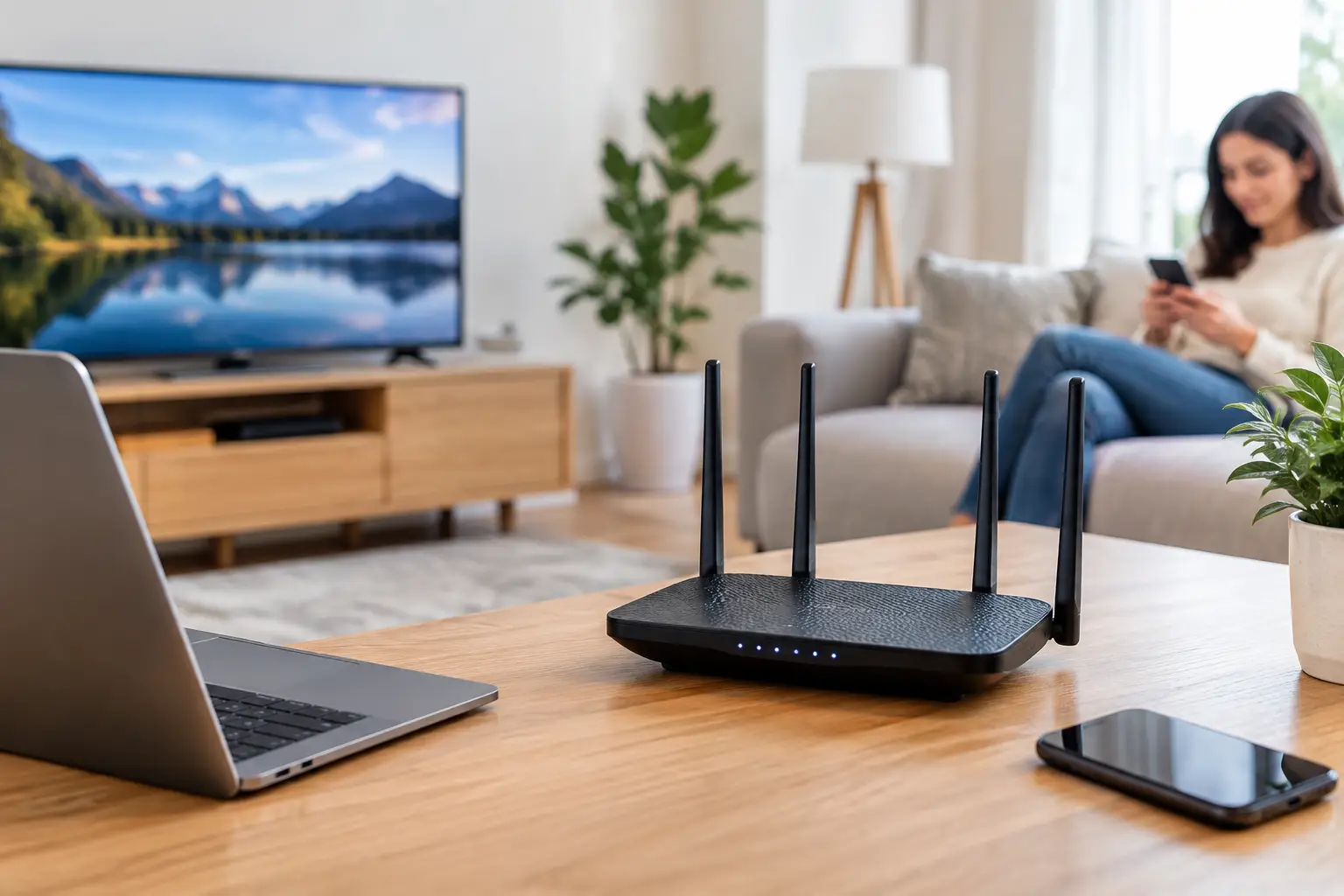
A video call that freezes every afternoon or a smart TV that buffers only in one room is often a Wi-Fi problem, not an internet plan problem. To reduce wifi interference, start by looking at what is happening inside your home: where the router sits, which wireless band your devices use, and what other equipment is competing for the same airwaves.
Interference is common, especially in apartments, townhomes, older homes, and busy households with many connected devices. The good news is that many fixes are free, and most do not require changing internet providers or buying expensive equipment.
What Wi-Fi Interference Actually Means
Wi-Fi sends data through radio waves. Those waves can be weakened, blocked, or crowded by other wireless signals and physical objects. When that happens, devices may have trouble holding a stable connection even when your internet service itself is working normally.
Interference is not exactly the same as weak Wi-Fi coverage. Weak coverage usually means the device is too far from the router or separated by dense materials such as brick, concrete, metal, tile, or multiple walls. Interference means other signals or electronics are disrupting the Wi-Fi signal. In practice, the two problems can happen at the same time.
A useful clue is whether trouble follows a pattern. If Wi-Fi becomes unreliable when someone uses a microwave, when a neighbor arrives home, or only on devices connected to the older 2.4 GHz band, interference is a likely factor. If the connection is poor only at the far end of the house, coverage is the more likely issue.
Before changing settings, run a speed test close to the router and then repeat it where problems occur. If performance drops sharply with distance, focus first on router placement or expanded coverage. If performance changes at certain times or around specific devices, investigate interference.
Put the Router Where Wi-Fi Can Work
Router placement has more impact than many people expect. A router tucked into a cabinet, placed behind a television, or hidden in a basement utility room starts at a disadvantage. Wi-Fi signals travel outward from the router, and nearby obstructions absorb or reflect part of that signal.
Place the router in an open, elevated location if possible. A shelf, table, or wall-mounted position is usually better than the floor. For a single-level home, aim for a relatively central spot. In a two-story home, a central location near the middle of the house often works better than putting the router at one extreme end.
Keep the router away from large metal objects, filing cabinets, aquariums, thick masonry, and major appliances. It also helps to avoid placing it directly beside a TV, soundbar, cordless-phone base, baby monitor, or smart-home hub. These devices may not always cause interference, but giving the router some breathing room is an easy precaution.
There are limits to what placement can solve. In a large home, a detached office, or a space with concrete walls, one router may simply not provide enough coverage. A mesh Wi-Fi system or a wired access point can be a better answer than repeatedly moving the same router a few feet.
Use the Right Wi-Fi Band
Most current routers offer at least two bands: 2.4 GHz and 5 GHz. Many newer models also offer 6 GHz through Wi-Fi 6E or Wi-Fi 7. Each has a different role.
The 2.4 GHz band travels farther and handles walls somewhat better, but it is also crowded. It is shared with many older Wi-Fi networks and household devices, including some wireless cameras, Bluetooth equipment, cordless phones, and microwave ovens. It is often the band most affected by interference.
The 5 GHz band generally offers faster speeds and more room for nearby networks to operate without stepping on each other. Its range is shorter than 2.4 GHz, so it may not reach every corner of a large home as well. For phones, laptops, streaming boxes, and game consoles that are reasonably close to the router, 5 GHz is often the better choice.
The 6 GHz band is even less crowded and can provide excellent performance for compatible newer devices. Its shorter range means it works best in the same room or nearby rooms. It also will not help older devices that do not support it.
Many routers automatically choose the best band through a feature sometimes called band steering or Smart Connect. This is convenient and usually works well. If a particular device keeps connecting to 2.4 GHz when 5 GHz would be better, though, separating the network names temporarily can help identify the problem. You might name one network “HomeWiFi-2.4” and the other “HomeWiFi-5” in the router settings. Once the troublesome device is assigned to the better band, you can decide whether to keep separate names.
Change Channels When Nearby Networks Are Crowded
Wi-Fi channels are like lanes on a highway. In a dense apartment building, several nearby routers may be using the same lane, which can slow everyone down during busy periods.
Most modern routers are set to choose channels automatically. Leave that setting on first, particularly if your router is newer. It can adjust as conditions change. If problems continue, check the router’s administration app or settings page for channel options.
On 2.4 GHz, channels 1, 6, and 11 are usually the practical choices in the United States because they do not overlap with each other. Choosing a different channel can help if your router and several neighbors are all on the same one. On 5 GHz, there are more available channels, so congestion is generally less severe.
Avoid increasing the 2.4 GHz channel width to 40 MHz just to chase higher speeds. In a crowded area, that setting can create more overlap and worse reliability. A 20 MHz width is often the sensible choice for 2.4 GHz. The best channel width for 5 GHz and 6 GHz depends more on your router, nearby networks, and device support, so automatic settings are a reasonable default.
Identify Household Devices That Cause Trouble
Not every slow connection is caused by a neighbor’s Wi-Fi. Common household sources of interference include microwave ovens, older cordless phones, wireless baby monitors, Bluetooth devices, wireless security cameras, and some wireless speakers.
A microwave is a classic example. It can affect 2.4 GHz Wi-Fi while it is running, particularly if the router or streaming device is nearby. Moving the router farther away or using 5 GHz for the affected device often resolves the issue.
Bluetooth normally coexists with Wi-Fi reasonably well, but a room full of Bluetooth accessories can add to congestion on 2.4 GHz. If your laptop, headset, smart speaker, and game controller are all in the same area, use 5 GHz or 6 GHz Wi-Fi when available.
Wireless cameras and smart-home devices may need 2.4 GHz because of their design. That is not necessarily a problem, but it is one reason to reserve 5 GHz for higher-demand devices such as TVs, computers, and game consoles. Smart devices usually use very little bandwidth individually, yet a large collection can make an already-crowded band harder to manage.
Update Equipment Before Replacing It
Router software updates can improve stability, security, and how well a router manages crowded wireless conditions. Check your router’s app or settings page a few times a year and install available firmware updates. Restarting the router can also clear a temporary problem, but it should not be the only fix you rely on.
If the router is several years old, it may lack the capacity to handle a modern household full of phones, laptops, TVs, cameras, and smart devices. A current Wi-Fi 6 router is a practical upgrade for many homes, while Wi-Fi 6E or Wi-Fi 7 may make sense for households with compatible newer devices and heavy nearby network congestion.
Do not buy a new router solely because an internet plan advertises a high speed. First make sure the connection to the home is actually delivering the expected performance near the router. For a typical household, 100 Mbps is a practical starting point, while active families with multiple simultaneous users often benefit from 300 to 500 Mbps. But even a 1 Gig plan cannot overcome poor Wi-Fi placement or a crowded 2.4 GHz connection.
When Interference Is Not the Main Problem
If speeds are slow even when standing next to the router, test with a computer connected by Ethernet if possible. A poor wired result points more toward the internet connection, modem, router hardware, or a service issue than Wi-Fi interference.
If only one device struggles, restart it, install its software updates, and forget then rejoin the Wi-Fi network. Older phones, laptops, and streaming devices can have weaker Wi-Fi hardware than newer equipment. A device may also be limited by its own capabilities, regardless of how fast the home internet plan is.
For persistent dead zones, use a mesh system with nodes placed where they still receive a strong signal from the main router. Do not place a mesh node in the dead zone itself. It needs a good connection back to the main unit before it can extend useful Wi-Fi farther into the home. When possible, Ethernet wiring between mesh units or access points provides the most reliable result.
A few thoughtful changes – an open router location, the right band, sensible channel settings, and updated equipment – can make Wi-Fi feel noticeably more dependable without changing your service plan.