
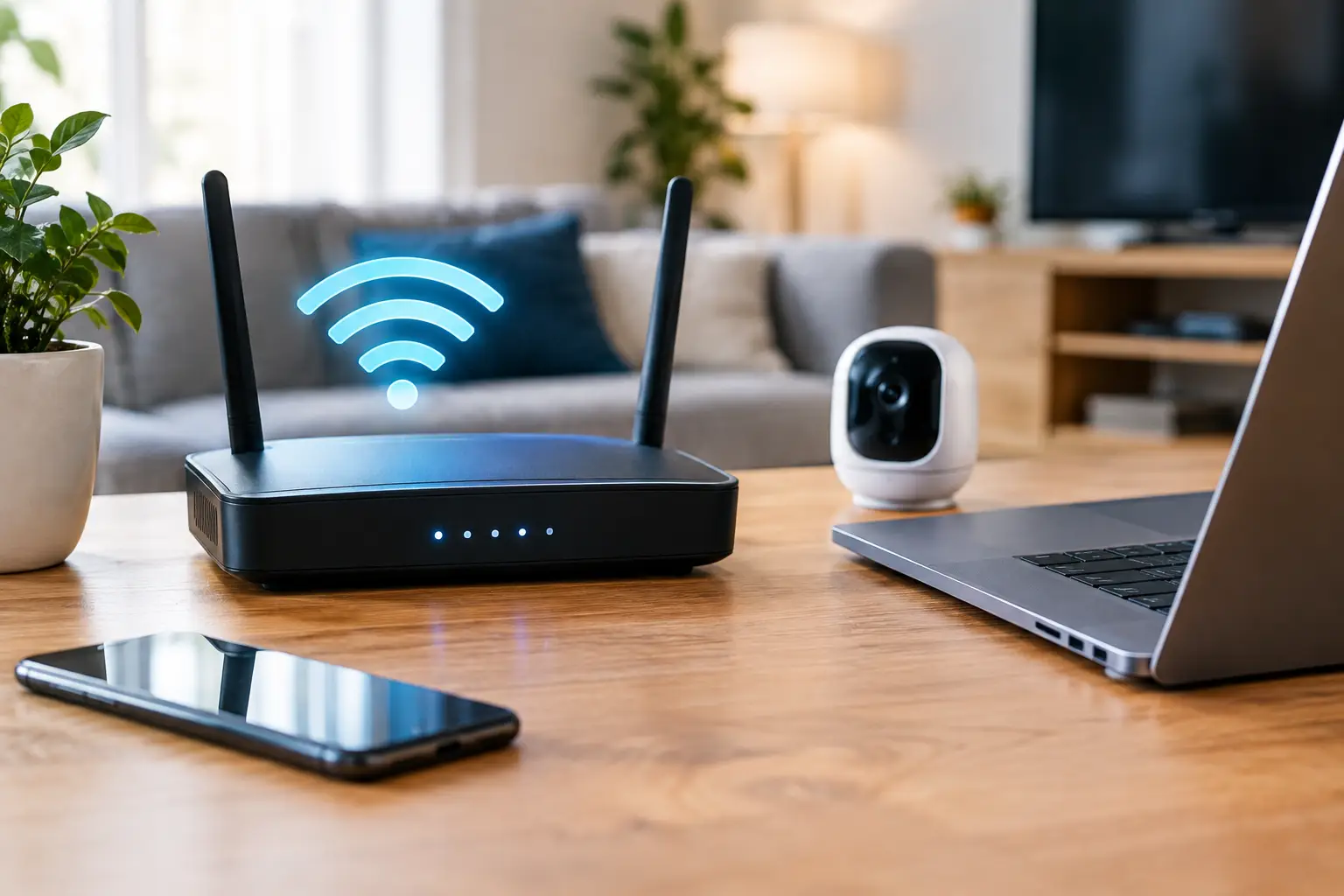
Your router is the front door to nearly every connected device in your home. Phones, laptops, smart TVs, game consoles, cameras, speakers, and even appliances may pass information through it. The question of how to secure a home network is not about making it complicated. It is about closing a few common gaps before they become someone else’s way in.
Most households can make meaningful improvements in an hour or two. Start with the router, then work outward to Wi-Fi settings, connected devices, and the accounts that control them.
How to secure a home network starts with the router
Your router is usually supplied by your internet provider, purchased separately, or built into a gateway that combines a modem and router. Whatever the setup, sign in to its management app or web page and review the basics.
The first priority is changing the router administrator password. This is different from your Wi-Fi password. The administrator password controls the router settings themselves, including who can change the network name, view connected devices, or open access from outside the home. Never leave it set to a factory default or reuse a password from another account.
Choose a long, unique password. A password manager makes this much easier because it can create and store one that is difficult to guess. If your router account offers two-factor authentication, turn it on.
Install router firmware updates
Router manufacturers release firmware updates to fix security flaws and improve reliability. Many newer routers can install updates automatically, which is usually the best choice for a typical household. If automatic updates are not available, check for them every few months and after hearing about a major security issue.
An older router that no longer receives updates is worth replacing, even if it still seems to work. Wi-Fi standards and security support change over time. A router that cannot use WPA3 security, or at least WPA2 with AES encryption, is behind the curve.
Use the right Wi-Fi security setting
In the router’s Wi-Fi settings, look for the security mode. WPA3-Personal is the preferred option for most homes. It provides stronger protection against password guessing than earlier standards.
Some older devices may not connect to a WPA3-only network. In that case, WPA2/WPA3 transition mode can be a sensible compromise. If that causes connection problems, use WPA2-Personal with AES encryption. Avoid WEP, WPA, and WPA2 modes that use TKIP. Those are outdated and should not be used on an active home network.
Your Wi-Fi password should be long and unique, not a family name, street address, or anything easy for a neighbor to recognize. A short phrase with several unrelated words, numbers, and symbols can work well. You do not need to change it constantly, but you should change it after sharing it widely, losing a device, or moving into a home where the previous resident may know the password.
Turn off WPS
Wi-Fi Protected Setup, usually labeled WPS, was designed to make connecting devices easier. The push-button method can be convenient, but WPS has had security weaknesses and is unnecessary for most homes. Disable it unless you have a specific device that requires it. If a device only works with WPS, consider whether it is old enough to replace.
Separate guests and smart devices when possible
Giving visitors your main Wi-Fi password means their phones and laptops join the same network as your computers, storage devices, and smart-home equipment. A guest network is a better option. It gives guests internet access without automatically placing them alongside every device in your home.
Use a guest network for friends, contractors, short-term visitors, and anyone who needs temporary access. Give it its own password and change that password when it has been shared beyond people you know.
Many routers also offer an Internet of Things, or IoT, network. This is useful for devices such as smart plugs, cameras, thermostats, robot vacuums, and voice assistants. These products are convenient, but they often receive fewer updates than computers and phones. Keeping them on a separate network can limit what they can reach if one is compromised.
Not every router supports device isolation or a separate IoT network. If yours does not, a guest network may be a practical place for lower-priority smart devices, provided the setting allows those devices to work as needed. Smart speakers and streaming devices sometimes need to communicate with a phone on the main network, so test before moving everything.
Review the devices connected to your Wi-Fi
Open your router app and look at the connected-device list. You may see names such as iPhone, Roku, or Xbox, but you may also see vague labels or hardware addresses. Compare the list with the devices in your home.
An unfamiliar device does not always mean an intruder. It might be a printer, a forgotten tablet, a smart appliance, or a device listed under a generic manufacturer name. Still, it is worth investigating. Disconnect a device you cannot identify, change the Wi-Fi password, and reconnect your own devices if you suspect someone has gained access.
This is also a good time to remove devices you no longer use. An old Wi-Fi camera, streaming stick, or tablet should not remain connected simply because it was never unplugged. If you sell, donate, or discard a smart device, factory-reset it first.
Be careful with remote access settings
Some router features allow access to your home network from outside the house. Remote administration, port forwarding, and Universal Plug and Play, or UPnP, can be useful in limited cases, especially for gaming, a home server, or certain security systems. They can also create openings that a normal household does not need.
Keep remote administration turned off unless you have a clear reason to use it. If you need to reach router settings while away, use the manufacturer’s secure app with a protected account rather than opening the router’s management page to the internet.
Port forwarding should be treated the same way. Only create a rule when an app or device requires it, document what it is for, and remove it when you no longer use that device. UPnP is more nuanced: many game consoles and games benefit from it, but disabling it reduces automatic exposure. If you turn it off and your gaming setup works normally, leaving it off is the safer choice.
Protect the accounts behind your connected devices
Network security is only part of the picture. A person who gains access to your camera account, smart-home account, or email account may not need your Wi-Fi password at all.
Use unique passwords for the apps and services that manage cameras, doorbells, thermostats, streaming accounts, and cloud storage. Turn on two-factor authentication wherever it is offered, especially for email. Email is often the reset point for other accounts, so protecting it well has an outsized benefit.
Be skeptical of unexpected messages claiming that your router, camera, or streaming account needs immediate attention. Go directly to the app or type the official website address yourself rather than using a link in an email or text. A convincing fake login page can capture both a password and a verification code.
Keep phones, computers, and smart devices updated
Security updates matter on every device connected to your network. Set phones, tablets, laptops, and computers to install operating system updates automatically when practical. Update browsers, streaming devices, game consoles, and smart-home apps too.
For smart devices, check whether the manufacturer still supports the product before buying it. A lower price can be less of a bargain if the company stops issuing updates soon after purchase. Cameras, locks, and devices with microphones deserve extra attention because they handle particularly sensitive parts of home life.
If a device has a default username and password, change both during setup. This is especially common with cameras, network storage, and specialty equipment. Do not assume a device is safe because it sits inside your home. Once connected, it is part of your network.
Set up a safer home office connection
For people who work from home or run a small business, keep work equipment updated and protected with a screen lock. A separate guest or IoT network can help keep personal smart devices away from a work computer, but it is not a substitute for company security rules.
If your employer requires a virtual private network, use it as instructed. Avoid storing business files on an unprotected shared computer or giving household members access to a work laptop. For a small business operating from home, consider a separate network for business devices if customer information, payment systems, or sensitive files are involved.
Build a routine you can actually keep
You do not need to inspect router settings every week. A realistic routine is more useful than an elaborate one that never happens. Set a reminder twice a year to install updates, check connected devices, review guest access, and remove old equipment.
When you add a new smart device, take five extra minutes to change its default password, install available updates, and decide which network it belongs on. Those small decisions prevent most avoidable problems. A secure home network is not one you set up perfectly once. It is one you keep reasonably current as the devices in your home change.