
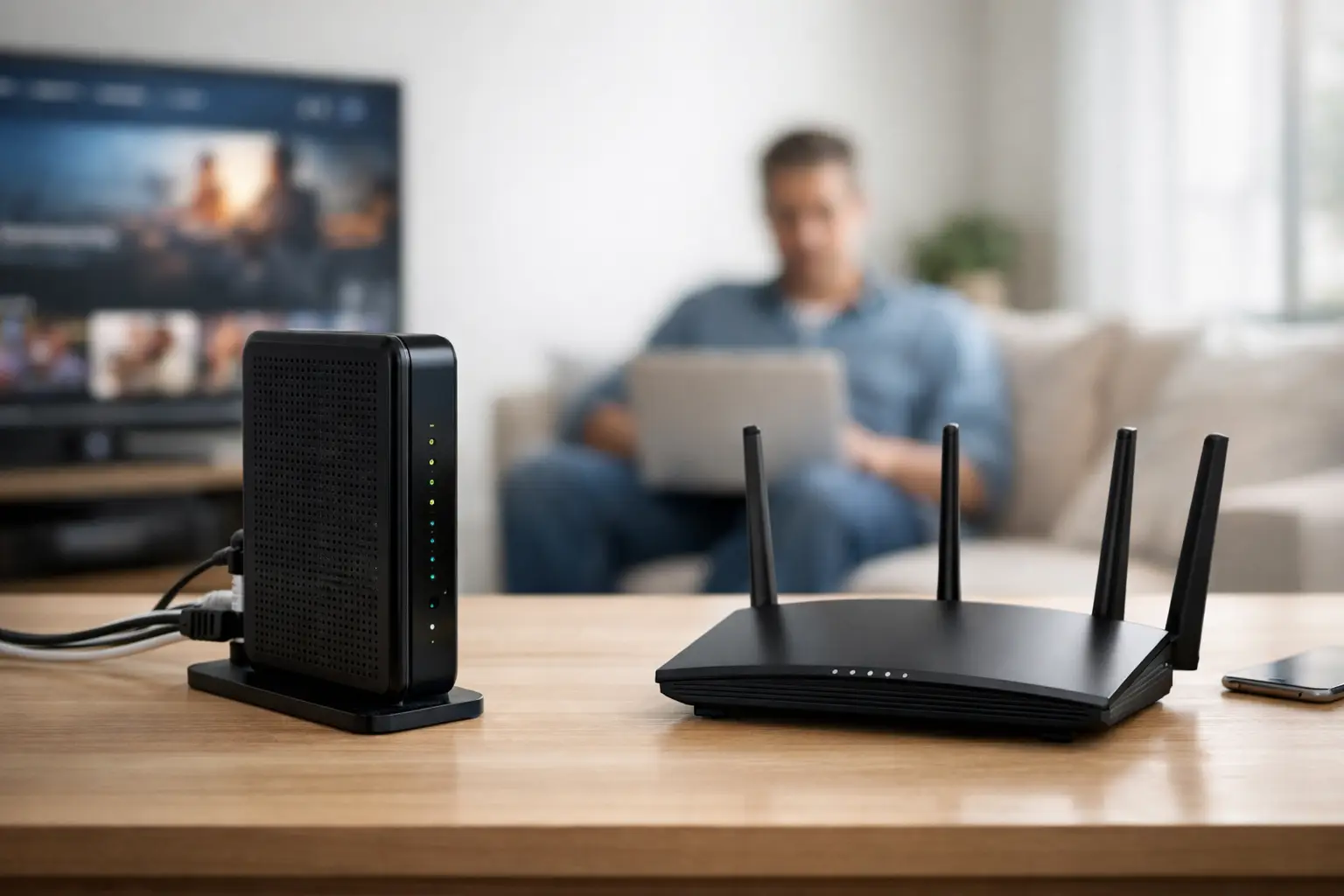
If your internet equipment has blinking lights and a tangle of cables, the modem vs router difference can feel unnecessarily confusing. The short answer is that a modem brings internet service into your home, while a router shares that connection with your phones, TVs, computers, and other devices. Many households need both, although they are sometimes combined into one unit.
Knowing which device does what makes it much easier to set up new service, improve weak Wi-Fi, or figure out why the internet is down.
Modem vs Router Difference: The Simple Explanation
A modem is the device that communicates with your internet provider’s network. It takes the signal delivered to your home – through a cable line, fiber connection, phone line, fixed wireless receiver, or satellite equipment – and converts it into a usable internet connection.
A router takes that internet connection and creates your home network. It sends the connection to devices using Wi-Fi, Ethernet cables, or both. The router also lets your laptop, smart TV, game console, and phone use the same internet service at the same time.
Think of the modem as the point where internet service enters the house. The router is the traffic manager inside the house, directing that connection to the devices that need it.
| Device | Main job | What it connects to | | — | — | — | | Modem | Connects your home to the provider’s network | The incoming service line and usually one router | | Router | Creates and manages your local home network | The modem and all your wired or wireless devices |
In a typical setup, a cable from the wall connects to the modem. An Ethernet cable then runs from the modem to the router’s internet or WAN port. Your devices connect to the router.
What a Modem Does
The modem’s job is relatively narrow but essential. Without a compatible modem or provider-supplied gateway, your home generally cannot connect to the provider’s service at all.
The type of modem depends on the kind of internet you have. Cable internet uses a cable modem. DSL service uses a DSL modem. Some fiber services use an optical network terminal, often called an ONT, rather than what consumers traditionally think of as a modem. Fixed wireless and satellite installations may include specialized outdoor and indoor equipment.
That distinction matters when buying equipment. A cable modem cannot be used with fiber service, for example. Before purchasing any modem, confirm that it works with your service type and that your provider accepts that model on its network.
A modem does not usually provide strong, full-home Wi-Fi by itself. It may have only one Ethernet port because it is designed primarily to pass the internet connection to a router.
Can a modem affect internet speed?
Yes. An outdated or low-capability modem can hold back the service you pay for, especially with cable internet. If you have a plan with speeds of 300 Mbps, 500 Mbps, or 1 Gig, the modem needs to support those levels.
For cable service, compatibility standards and channel capacity matter. You do not need to memorize the technical details, but an older modem may not support faster plans or may perform poorly when the local network is busy. If your provider recently increased your plan speed and your performance did not change, the modem is worth checking.
Still, modem limitations are only one possible cause of slow service. Wi-Fi coverage, router age, device limitations, and the number of people online can all affect what you experience.
What a Router Does
The router is usually the more visible part of a home network because it handles Wi-Fi. It creates the network name you see when connecting a phone or laptop, often called the Wi-Fi name or SSID. It also controls the password that keeps neighbors and unfamiliar devices off your network.
Beyond Wi-Fi, a router assigns local addresses to your devices, manages traffic between them, and includes basic security features. Many routers also offer parental controls, guest networks, device prioritization, and app-based setup.
Router quality has a major effect on daily internet use. A good internet plan cannot fix a router that is too old, poorly placed, or unable to handle a busy household.
For a household with several people streaming, video calling, gaming, backing up photos, and using smart-home devices, 300 to 500 Mbps is often a sensible range. But those speeds need a router capable of delivering a strong signal throughout the areas where people actually use their devices.
Wi-Fi speed is not the same as internet speed
This is one of the most common sources of frustration. Your provider may be delivering the speed included in your plan to the modem, while your phone receives much less over Wi-Fi in a distant bedroom.
Walls, floors, appliances, distance, and interference from nearby networks can weaken Wi-Fi. Older devices may also be limited by their own Wi-Fi hardware. Moving the router to a central, open location can help more than many people expect.
If one part of the house consistently has poor coverage, a mesh Wi-Fi system may be more useful than simply paying for a faster internet tier. Mesh systems use multiple access points to extend coverage across larger homes or areas with thick walls and awkward layouts.
Do You Need Both a Modem and a Router?
In most homes, yes. You need a device to connect to the provider’s network and a device to distribute that connection around your home.
However, some providers supply a single device that combines both functions. This is often called a gateway. It works as a modem and router in one box, which can make installation simpler and reduce the number of cables and power outlets needed.
A combined gateway is often perfectly fine for an apartment, a smaller home, or anyone who wants the easiest setup. The trade-off is flexibility. If its Wi-Fi coverage is weak or its features are limited, replacing only the router function can be less straightforward than it is with separate devices.
Using a separate modem and router gives you more control. You can upgrade the router for better Wi-Fi without replacing the modem, or replace a failing modem without changing your entire network. This arrangement can be especially helpful in larger homes and for households that want mesh Wi-Fi, stronger parental controls, or more wired Ethernet connections.
With fiber service, the provider’s ONT may be separate from the router. You may not see a traditional modem at all, but the same basic idea applies: one piece of equipment connects the home to the service network, and the router manages your local Wi-Fi and wired network.
How to Tell Which Device You Have
Start by following the cables. The device connected directly to the cable outlet, fiber terminal, or other incoming service equipment is usually the modem or gateway. The router is usually connected to that device by an Ethernet cable.
A separate router often has several Ethernet ports grouped together for wired devices, along with Wi-Fi antennas or a Wi-Fi label. A modem may have fewer ports and may be labeled with terms such as Cable, Coax, DSL, Internet, or WAN.
If you have only one box and it provides the Wi-Fi name and password used by your household, it is probably a combined modem-router gateway. Equipment labels, model numbers, and your provider account information can confirm it.
What to Restart When Your Internet Stops Working
When every device loses internet access, start with the modem or gateway. Check whether it has power and whether its service-status lights show an obvious problem. A light pattern can vary by model, but an online or internet light that is off or blinking for a long time may indicate a connection issue outside your home.
If you use separate equipment, restart the modem first. Unplug it for about 30 seconds, reconnect it, and wait several minutes for it to fully reconnect. Then restart the router and give it another minute or two.
If only Wi-Fi devices have trouble but a computer connected by Ethernet works normally, the provider connection and modem are likely fine. The problem is more likely with the router, Wi-Fi signal, or the affected device.
Avoid pressing a small reset button unless you intend to erase your network settings. A factory reset can remove your Wi-Fi name, password, and other custom settings, creating more work than a normal restart.
When It Makes Sense to Replace Your Equipment
Consider replacing a router when coverage is unreliable, devices frequently disconnect, the router is many years old, or it cannot keep up with the number of connected devices in your household. A new router will not increase the speed delivered by your provider, but it can improve how well that speed reaches your devices.
Consider replacing a modem when it is not approved for your service, cannot support your current plan, loses connection often, or has been in service long enough that its technology is outdated. If you rent a gateway, compare the monthly equipment cost with the benefits of using your own compatible equipment. Provider support and replacement coverage can be worth the rental fee for some households.
The best setup is not necessarily the most expensive one. It is the one that matches your service type, supports your speed plan, and provides dependable coverage where your household works, streams, and connects. Once you know whether the issue belongs to the modem or the router, solving home internet problems becomes far less of a guessing game.