
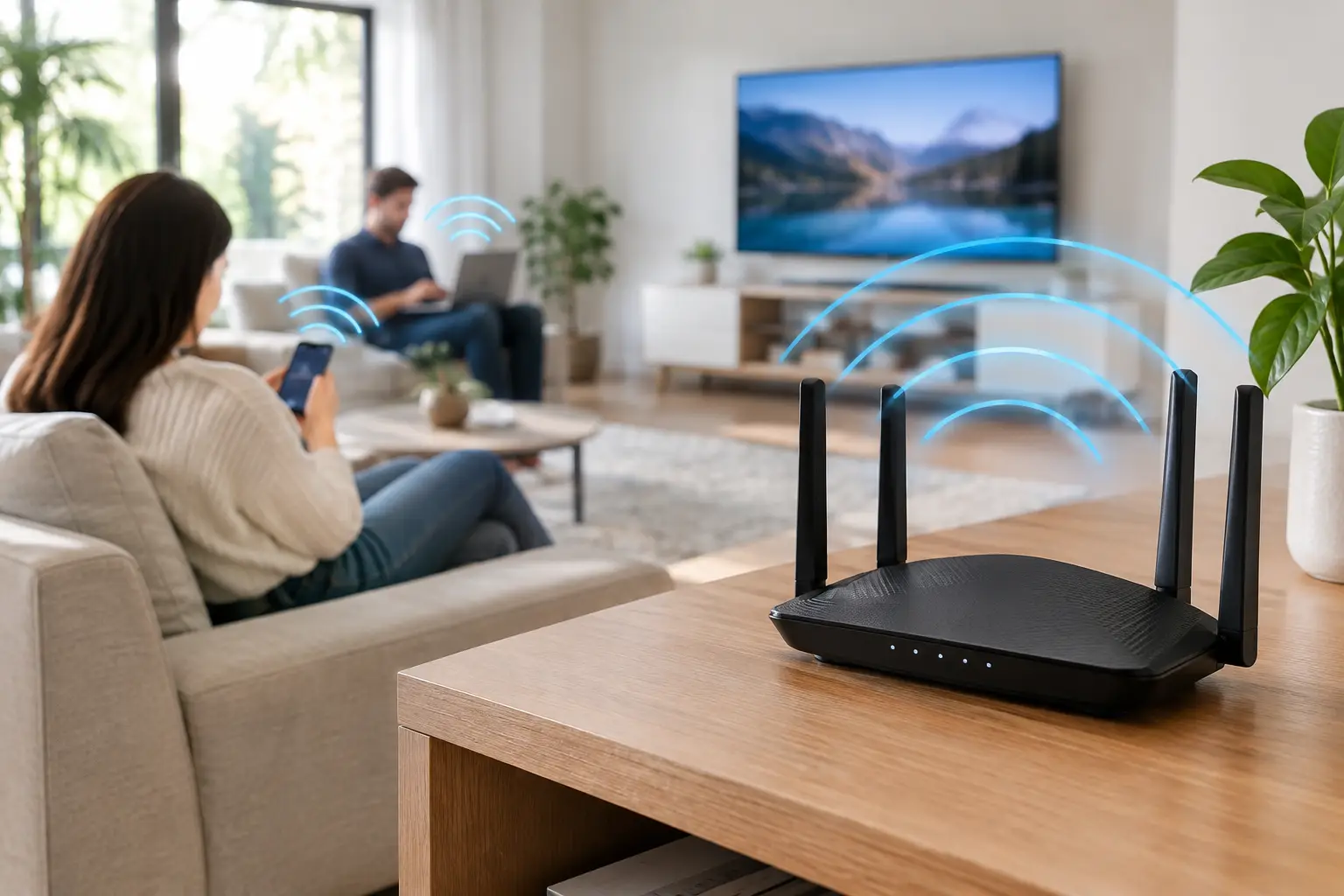
A fast internet plan cannot do much for a router that is tucked behind a television, sitting on the floor, or trapped in a closed cabinet. Good wifi router placement is one of the simplest ways to improve weak signals, buffering, and dropped video calls without changing your internet service.
The goal is not to put the router in the most convenient place for a cable outlet. It is to give the Wi-Fi signal the clearest practical path to the places where people actually use phones, laptops, TVs, game consoles, and smart-home devices.
Start With a Central, Open Location
Wi-Fi spreads outward from the router. For most single-level homes, the best location is near the center of the living area, on an open shelf or table several feet above the floor. A spot in a central hallway, open office, or living room often works better than a far corner of the house.
That may be inconvenient if the incoming internet line enters at one exterior wall. Still, moving the router even one room closer to the center can make a noticeable difference. If your modem or fiber connection must stay where it is, a longer Ethernet cable can let you place a separate router in a better location. Ethernet carries the connection reliably over distance, while Wi-Fi does not have to fight through as many walls.
For a two-story home, aim for a location near the middle of the home and, if possible, around the main floor rather than at either extreme. Wi-Fi reaches above and below the router, but floors weaken the signal. A centrally located main-floor router gives both levels a more reasonable starting point.
Keep the Router Out in the Open
Routers are not designed to be hidden. Cabinets, entertainment centers, closets, and drawers can all reduce coverage, especially when they are surrounded by wood, metal, electronics, or dense wiring.
Place the router in an open area with room around it. A bookcase shelf can work well if the router is near the front and not blocked by large books. A high shelf is usually better than the floor, although it does not need to be mounted near the ceiling. Think eye level or slightly above in a room where people spend time.
Avoid placing a router:
- Inside a cabinet, closet, or enclosed TV stand
- Behind a television or large piece of furniture
- On the floor, especially near concrete or metal objects
- Next to a microwave, cordless-phone base, baby monitor, or Bluetooth-heavy device
- Beside a large aquarium, water pipe, or thick masonry wall
- In a garage, basement corner, or far edge of the home unless that is where coverage is needed most
Some of these items cause direct wireless interference. Others simply block or absorb the signal. Water is especially effective at weakening Wi-Fi, which is one reason an aquarium between the router and a frequently used room can create a surprising dead zone.
Walls and Building Materials Matter More Than Room Size
An open 2,500-square-foot home may get better Wi-Fi from one router than a smaller home divided by plaster walls, brick, tile, concrete, or metal framing. The layout and materials matter as much as the square footage.
Drywall and wood are usually manageable. Brick, concrete, stone, mirrors, and metal appliances are harder for Wi-Fi to pass through. Bathrooms and kitchens can also be troublesome because they often contain tile, pipes, appliances, and water.
This is why the router should not automatically go in the room with the most devices. If that room sits at one end of the house, putting the router there can leave the other half struggling. Instead, choose a compromise location that gives most rooms a usable signal. For one critical device, such as a work computer or game console, a wired Ethernet connection may be the better answer.
Set Up Router Antennas With Your Home in Mind
If your router has external antennas, their position affects the direction of the signal. A simple starting point is to keep one antenna vertical and another horizontal, if the router has two or more adjustable antennas. This can help devices held in different orientations receive a stronger signal.
Do not assume pointing antennas toward a particular room will send all the Wi-Fi in that direction. Router antennas generally spread signal outward rather than acting like a flashlight beam. Their job is to provide broad coverage, not pinpoint coverage.
Routers with internal antennas need no adjustment. Their placement still matters just as much, so keep the unit upright if the manufacturer designed it to stand that way and avoid covering its vents.
Put the Router Near the Devices That Need It Most
The best Wi-Fi router placement depends on how your household uses the internet. A family that streams in the living room, takes video calls in a home office, and games in a bedroom needs a different setup than someone who primarily works from a detached garage.
Start by identifying the rooms where poor Wi-Fi would cause the most frustration. Those are usually the home office, main TV area, bedrooms, and any room with a smart TV or gaming console. Then select the most central open location that favors those areas.
If a router must be placed near the internet entry point, do not judge its performance solely from the same room. Walk through the home and test Wi-Fi in the places that matter. A signal can look excellent beside the router while becoming unreliable after two walls and a floor.
Know When One Router Is Not Enough
A better location can solve many coverage problems, but it cannot overcome every floor plan. Large homes, long ranch layouts, homes with dense construction, and properties with finished basements or detached workspaces may need more than one Wi-Fi access point.
A mesh Wi-Fi system is often the cleanest option when coverage is weak in several areas. It uses multiple coordinated units to spread Wi-Fi across the home under one network name. Place the main unit near the modem or fiber gateway, then put additional units partway toward the weak areas. Do not place a mesh unit in the dead zone itself. It needs a good connection to the main unit or another mesh point before it can extend useful coverage.
A traditional Wi-Fi extender can help with one small weak area, but it has trade-offs. Many extenders receive a wireless signal and retransmit it, which can reduce available speed and add a little delay. They work best when placed between the router and the problem room, where the router’s signal is still strong.
For the best performance, use Ethernet to connect mesh units or access points when your home wiring allows it. This is called a wired backhaul, and it frees the Wi-Fi signal to serve your devices instead of carrying traffic between network units.
Separate a Wi-Fi Problem From an Internet-Speed Problem
Weak Wi-Fi and slow internet service can feel similar, but the fix is different. Before moving equipment repeatedly, test a computer connected directly to the router with an Ethernet cable. If that wired test is close to the speed you pay for but Wi-Fi tests are much lower in distant rooms, placement or coverage is likely the issue.
If wired speeds are consistently far below your plan’s expected performance, the problem may involve the internet connection, modem, gateway, or router itself. For a typical household, 100 Mbps is a practical starting point, while active families with many connected devices often benefit from 300 to 500 Mbps. Heavy-use homes with multiple 4K streams, gaming, remote work, cloud backups, and many devices may benefit from 1 Gig service or more. But even a gigabit plan will not make a poorly placed router reach every corner of a large home.
Also consider the age of the router. An older model may have limited range or may struggle when many devices are active. If the router is several years old, supports only older Wi-Fi standards, or regularly needs to be restarted, replacing it can be more productive than buying another extender.
A Simple Way to Find the Best Spot
You do not need special equipment to improve placement. Start with the router in an open, central location as close as practical to the middle of your daily Wi-Fi use. Test a few rooms with the same phone or laptop, including at the times your network is busiest.
Move the router one change at a time: higher on a shelf, farther from the TV, or a room closer to the center. Give the network a few minutes after each move, then test again. The strongest location is not always the prettiest or most convenient one, but it should provide reliable coverage where your household needs it.
A router placed thoughtfully can make your existing connection feel noticeably better. Before spending money on faster service or more equipment, give the signal a clearer path through your home.