
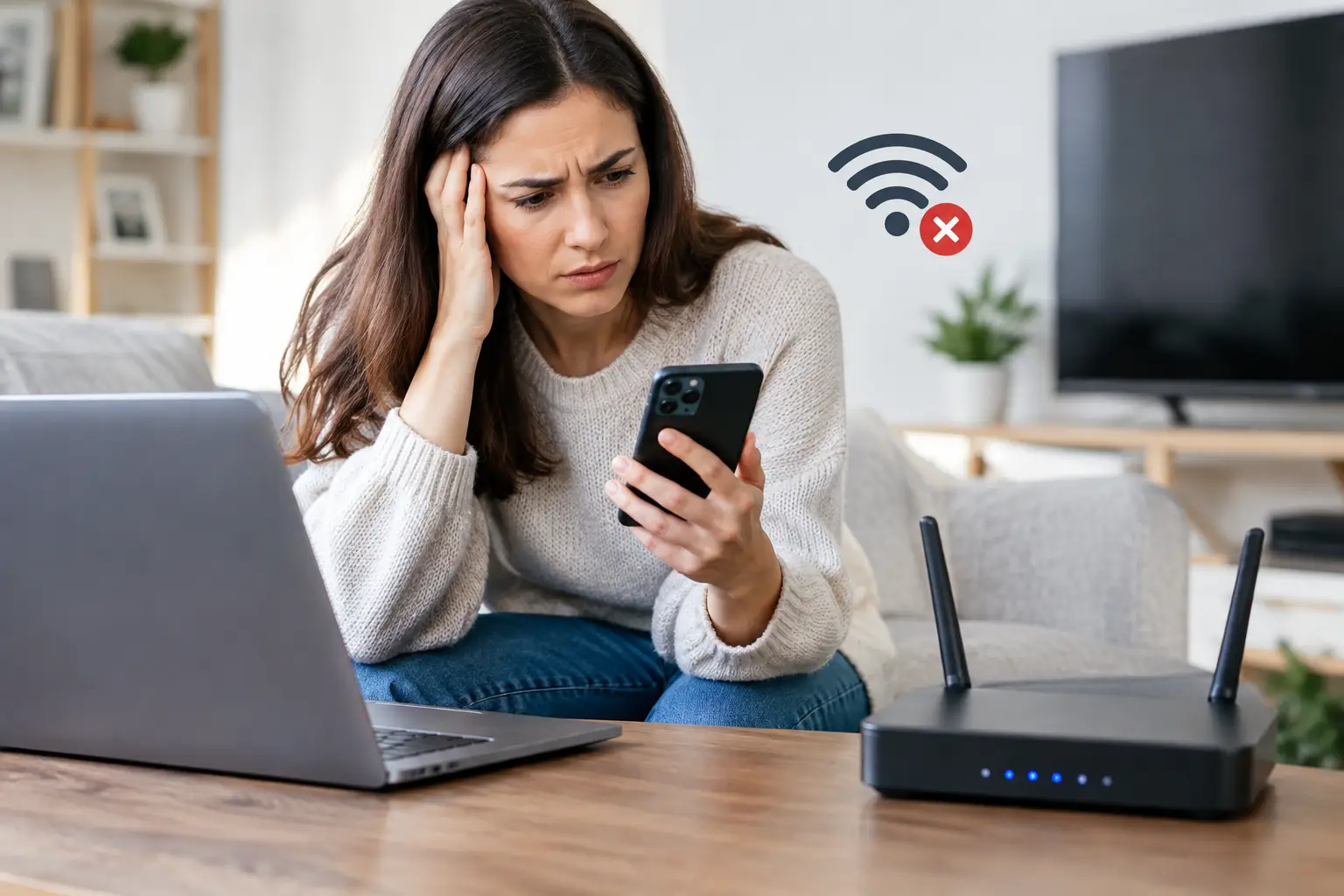
A video freezes in the middle of a show, your laptop drops out of a work call, or a smart TV suddenly says it is offline. If you are asking, “why does wifi disconnect randomly,” the answer is usually not one mysterious problem. It is often a signal issue, a router problem, a device setting, or an interruption with the internet connection coming into your home.
The useful first step is to notice what disconnects. If every device loses access at the same time, look at the modem, router, and internet service. If only one phone, laptop, or streaming device drops off, the issue is more likely with that device or its location. That distinction can save a lot of unnecessary troubleshooting.
Why Does WiFi Disconnect Randomly?
Wi-Fi is the short-range wireless connection between your device and your router. Your internet service is the connection between your modem or gateway and the provider’s network. They work together, but they can fail separately.
For example, your phone may still show that it is connected to Wi-Fi even when the internet is down. In that case, the router is working well enough to connect your phone, but the modem may have lost its connection to the internet. On the other hand, if your device cannot see the Wi-Fi network at all, the issue is more likely inside the home.
Random disconnects are especially common at the edges of a home’s coverage area. Wi-Fi signals weaken as they pass through walls, floors, plumbing, brick, concrete, and large appliances. A router can seem perfectly reliable in the living room and unreliable in a back bedroom, upstairs office, garage, or patio.
Weak signal and poor router placement
Router placement has a bigger effect than many people expect. A router hidden in a cabinet, placed on the floor, tucked behind a TV, or installed in a basement may have trouble reaching the places where people actually use the internet.
Place it in as central and open a location as practical, ideally on a shelf or table rather than the floor. Keep it away from dense metal objects, aquariums, cordless-phone bases, and microwave ovens. You do not need a perfect center point, but putting the router at one far end of the house makes it harder for the signal to reach the other end.
A large home, a long single-story layout, or a house with thick walls may need more than one Wi-Fi access point. A mesh Wi-Fi system can help, but placement still matters. Mesh units that are too far apart cannot pass along a strong enough signal to improve coverage.
Interference and crowded Wi-Fi channels
Wi-Fi shares radio space with nearby networks and household electronics. In apartments, townhomes, and dense neighborhoods, dozens of nearby routers can compete for the same airwaves. That competition can create pauses, slowdowns, and brief disconnects, particularly during busy evening hours.
Most current routers offer two main Wi-Fi bands: 2.4 GHz and 5 GHz. The 2.4 GHz band generally reaches farther but is more crowded and slower. The 5 GHz band is usually faster and less crowded, though it has a shorter range. Some newer equipment also supports 6 GHz, which can offer cleaner wireless space for compatible devices but reaches a shorter distance than 2.4 GHz.
Letting a modern router choose the band automatically works well for many homes. If a device repeatedly disconnects at a distance, though, manually connecting it to the 2.4 GHz network may be more stable. If it is near the router and needs better performance, 5 GHz is often the better choice.
Router, modem, or gateway trouble
Home networking equipment runs continuously, often for years. Like a computer, it can occasionally get stuck, overheat, or develop a software problem. An aging router may also struggle with a household full of phones, TVs, cameras, speakers, game consoles, and work devices.
A quick restart can clear a temporary issue, but do it in the right order. Unplug the modem and router or combined gateway for about 60 seconds. Plug the modem back in first and wait until its status lights show it has reconnected. Then turn on the router. If you have a combined modem-router gateway, one restart is enough.
If restarts help for only a day or two, check for a firmware update in the router’s settings. If the equipment is very old, runs unusually hot, or cannot handle the number of connected devices, replacement may be more practical than repeated resets. A factory reset should be a later step because it erases your Wi-Fi name, password, and other settings.
Check Whether the Problem Is Wi-Fi or Internet Service
When the connection fails, look at two devices in different parts of the home. Try opening a webpage on each. If both fail, check the lights on the modem or gateway. A red, blinking, or unlit online-status light can point to an outage or a problem with the line entering the home.
If possible, connect a laptop directly to the router with an Ethernet cable. Ethernet removes Wi-Fi from the test. If the wired connection stays stable while wireless devices disconnect, focus on router placement, interference, or Wi-Fi settings. If wired and wireless connections both stop working, the modem, gateway, or internet service is the more likely source.
Brief service interruptions can happen because of neighborhood maintenance, weather damage, line issues, or problems with the provider’s equipment. If the issue affects every device and continues after a proper restart, contact your internet provider and describe what you observed. Specific details help: the approximate times of the dropouts, whether modem lights changed, and whether a wired connection also failed.
Do not confuse a slow plan with a Wi-Fi dropout. Insufficient speed can make video calls choppy and streaming buffers more likely, but it normally does not make a device disappear from the Wi-Fi network. For a typical household, 100 Mbps is a practical starting point. Homes with several active users, frequent streaming, gaming, video calls, and smart devices often benefit from 300 to 500 Mbps or more. Even so, faster internet will not fix weak Wi-Fi in a distant room.
Device Settings Can Cause One Device to Drop
When one device disconnects while everything else works, start with that device. Restart it, then forget the Wi-Fi network and reconnect using the password. This removes saved connection details that may have become corrupted.
Software updates also matter. A phone, laptop, streaming stick, smart TV, or game console with outdated software can have Wi-Fi bugs that were fixed in later updates. For laptops, check the wireless adapter driver as well.
Power-saving settings can be another cause, especially on laptops. Some devices reduce power to the Wi-Fi adapter when the screen sleeps or battery-saving mode is active. If disconnects happen after the device sits idle, look for Wi-Fi power-management settings.
Smart-home devices deserve a separate mention. Many older cameras, plugs, printers, and doorbells work only on 2.4 GHz Wi-Fi. They may fail to connect if a router combines bands in a way the device does not understand, uses a security setting the device does not support, or is located too far away. The best fix is usually a compatible 2.4 GHz network setting, not repeatedly resetting the device.
A Practical Order for Fixing Random Wi-Fi Disconnects
Start with the simplest tests before changing several settings at once. First, determine whether the dropout affects every device or only one. Next, restart the modem and router correctly. Then move closer to the router and see whether the connection becomes stable.
If distance appears to be the problem, improve router placement before buying new equipment. If the problem occurs in only one room, a mesh system, wired access point, or carefully placed Wi-Fi extender may help. A wired access point is generally the most reliable option when running Ethernet is practical; a mesh system is often easier to install in homes where it is not.
If the issue happens at particular times each day, write down the pattern for several days. Evening-only trouble can suggest local Wi-Fi congestion or internet-service congestion. Disconnects during rain, wind, or extreme temperatures can point to an outdoor line or equipment issue. Patterns turn a vague complaint into useful evidence.
Finally, make sure the router’s security is current. Use WPA2 or WPA3 security, set a unique Wi-Fi password, and remove devices you no longer recognize. An overloaded or unsecured network can perform poorly, although random disconnects are more often caused by coverage, interference, or equipment trouble.
A stable connection is usually the result of matching the equipment to the home, placing it well, and testing one part of the setup at a time. Once you identify whether the failure is the Wi-Fi signal, a single device, or the incoming internet service, the next step becomes much clearer.