
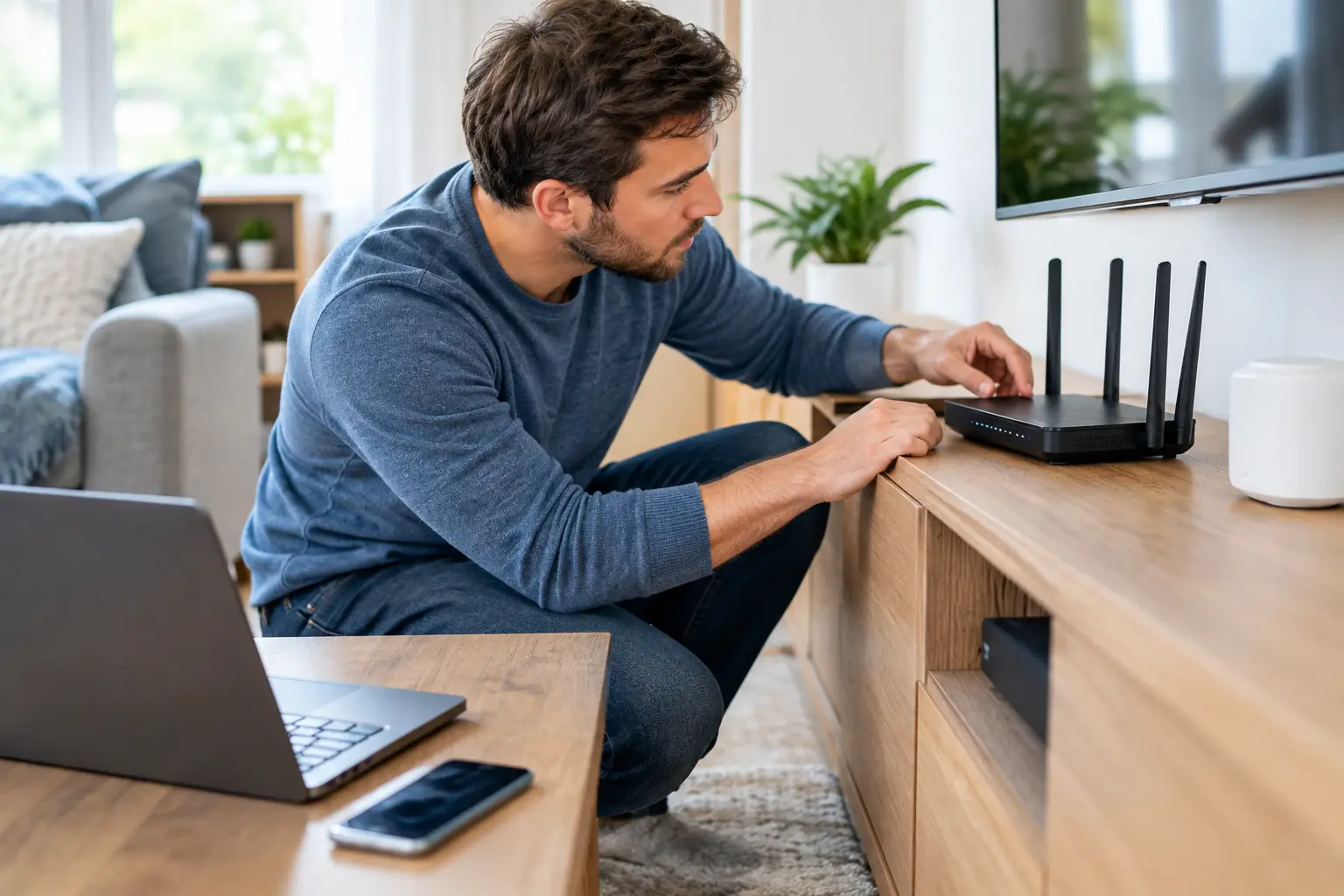
A movie starts buffering just as everyone sits down, a work call freezes, or one room suddenly has no Wi-Fi at all. Those problems feel similar, but they can come from very different places. Effective home network troubleshooting starts by separating an internet-service problem from a Wi-Fi coverage problem or an issue with one device.
The good news is that most home connection problems can be narrowed down without advanced tools. Test in a sensible order, change one thing at a time, and avoid the common habit of restarting everything before you know what failed.
Start by identifying what is actually affected
Before touching the router, ask three quick questions: Is every device having trouble? Does the problem happen on both Wi-Fi and a wired connection? Is it happening everywhere in the house or only in one area?
If every device is offline, the issue is likely with the modem, router, wiring, or the incoming internet service. If devices connected by Ethernet work but Wi-Fi devices do not, your internet service is probably fine and the problem is inside the wireless network. If only one phone, TV, or laptop is struggling, start with that device instead of disrupting the entire household.
Location matters, too. A weak signal in a back bedroom is not the same problem as a strong Wi-Fi signal with no internet access. Wi-Fi bars tell you how well a device can reach the router or access point. They do not confirm that the router has a working internet connection.
Check the modem and router without guessing
Many homes have two separate boxes: a modem that connects to the internet service and a router that creates the home Wi-Fi network. Some households have one gateway that does both jobs. Knowing which setup you have makes the indicator lights less confusing.
Look for obvious issues first. Make sure the power cable is secure, the coaxial, phone, or fiber connection has not been loosened, and the equipment is not tucked into a closed cabinet where it can overheat. A modem that has lost its connection may show a red, amber, or blinking status light, although light labels vary by model.
If the connection has failed across the house, restart equipment in the right order. Unplug the modem and router or gateway for about 60 seconds. If the modem and router are separate, turn the modem back on first and wait until it fully reconnects. Then power on the router. This gives the router a fresh connection to the modem instead of asking it to work with an incomplete one.
Do not press the small reset button unless you intend to erase the router’s settings. A factory reset can remove your Wi-Fi name, password, mesh configuration, parental controls, and other setup choices. Restarting with the power cord is the safer first step.
Rule out an internet outage
A local service interruption can look exactly like a router failure. If your modem will not come online after a restart and all devices are affected, check your provider’s outage information through cellular data if available. You can also ask a nearby neighbor who uses the same type of service, though not necessarily the same provider.
If there is no reported outage, inspect exterior or indoor service wiring only for visible damage or loose connections. Do not remove fiber connections or open provider-owned equipment. Those connections are delicate and are generally not a do-it-yourself repair.
Test Wi-Fi versus a wired connection
A laptop or desktop connected directly to the router with an Ethernet cable is one of the clearest troubleshooting tests available. If that wired device works normally while Wi-Fi is slow or unreliable, focus on wireless placement, interference, and router settings. If the wired device also fails, the problem is more likely the incoming service, modem, or router itself.
When possible, run a speed test near the router over Ethernet, then run another in the room where problems occur. The two results help tell a useful story. A strong wired result paired with a poor distant Wi-Fi result points to coverage. Poor results everywhere may point to the service connection, an overloaded router, or a plan that no longer fits the household.
For a typical household, 100 Mbps is a practical starting point. Active families using several streams, video calls, cloud backups, and smart devices often benefit from 300 to 500 Mbps. A gigabit plan can make sense for heavy-use households, but it will not fix weak Wi-Fi in a distant room. Speed coming into the home and the quality of Wi-Fi inside it are separate things.
Fix weak Wi-Fi where it happens
Router placement has a larger effect than many people expect. The best location is usually central, elevated, and out in the open. A router placed in a basement corner, a metal media cabinet, or behind a large television has to push its signal through more obstacles before it reaches the rooms that need it.
Concrete, brick, tile, mirrors, metal appliances, and water all weaken wireless signals. So can competing networks in apartments or dense neighborhoods. A device may also cling to a slower band even when a better option is available.
Most modern routers offer 2.4 GHz and 5 GHz Wi-Fi, and many newer models add 6 GHz. The 2.4 GHz band reaches farther and passes through walls better, but it is often more crowded. The 5 GHz band is usually faster at shorter distances. The 6 GHz band can offer cleaner airspace and excellent performance for compatible devices, but its range is typically shorter.
Try moving closer to the router and reconnecting the affected device. If performance immediately improves, coverage is the likely culprit. Repositioning the router may solve it. For a larger home or one with signal-blocking construction, a well-placed mesh Wi-Fi system or wired access point is usually a better answer than a basic plug-in extender. Extenders can help in a small dead zone, but they may reduce available speed because they must relay the signal.
Look for problems on one device
When only one device has trouble, forget and rejoin the Wi-Fi network first. This clears an old or corrupted connection profile without changing the network for everyone else. Confirm the device is not in airplane mode and that its software is current.
Smart TVs, streaming sticks, game consoles, and older printers can be especially stubborn after a router replacement or Wi-Fi password change. They may still be trying to use the old network name. Restart the device, select the current network, and enter the password carefully.
Also consider the device’s age and capability. An older streaming device may not support newer Wi-Fi bands, and an older laptop may have a slower wireless adapter than the rest of the household. That does not mean the internet plan is at fault. Compare the same service on a newer phone or laptop before drawing conclusions.
Check for congestion and interference
A connection that slows down only at certain times may be busy rather than broken. Large game downloads, cloud photo backups, security cameras uploading video, and several 4K streams can all compete for capacity. Video calls are especially sensitive to upload speed, which is often much lower than download speed on some service types.
Pause a large download or backup and see whether the affected activity improves. If it does, use your router’s device-management or quality-of-service controls if available. These settings can prioritize video calls or gaming, though they cannot create bandwidth your plan does not provide.
Microwaves, cordless devices, baby monitors, and Bluetooth equipment can sometimes interfere with 2.4 GHz Wi-Fi. You do not need to unplug every device in the house. Start by moving the router away from obvious electronics and testing whether 5 GHz improves the connection for nearby devices.
Know when the equipment is the problem
Routers do not last forever. Random disconnects, frequent reboots, poor range after years of use, and an inability to handle many active devices can all signal aging equipment. This is particularly common when a household has added smart TVs, cameras, speakers, work devices, and gaming systems to a router that was adequate years ago.
Before replacing anything, check whether the router firmware can be updated. Security and stability updates can resolve known issues. If the router is several years old and cannot support current Wi-Fi standards or your internet speed, replacement may be reasonable. For a multi-room household, prioritize coverage and device capacity over a router’s advertised top speed.
Keep a brief record if the issue continues: when it happens, which devices are affected, whether wired devices work, and what the modem lights show. That information makes a support call far more productive and helps you avoid being sent through the same basic steps repeatedly.
A reliable home connection rarely depends on one expensive piece of equipment. It comes from matching the service plan to the household, placing Wi-Fi equipment thoughtfully, and using a simple testing process when something goes wrong. Once you identify whether the trouble is the service, the Wi-Fi, or one device, the next step is usually much clearer.