
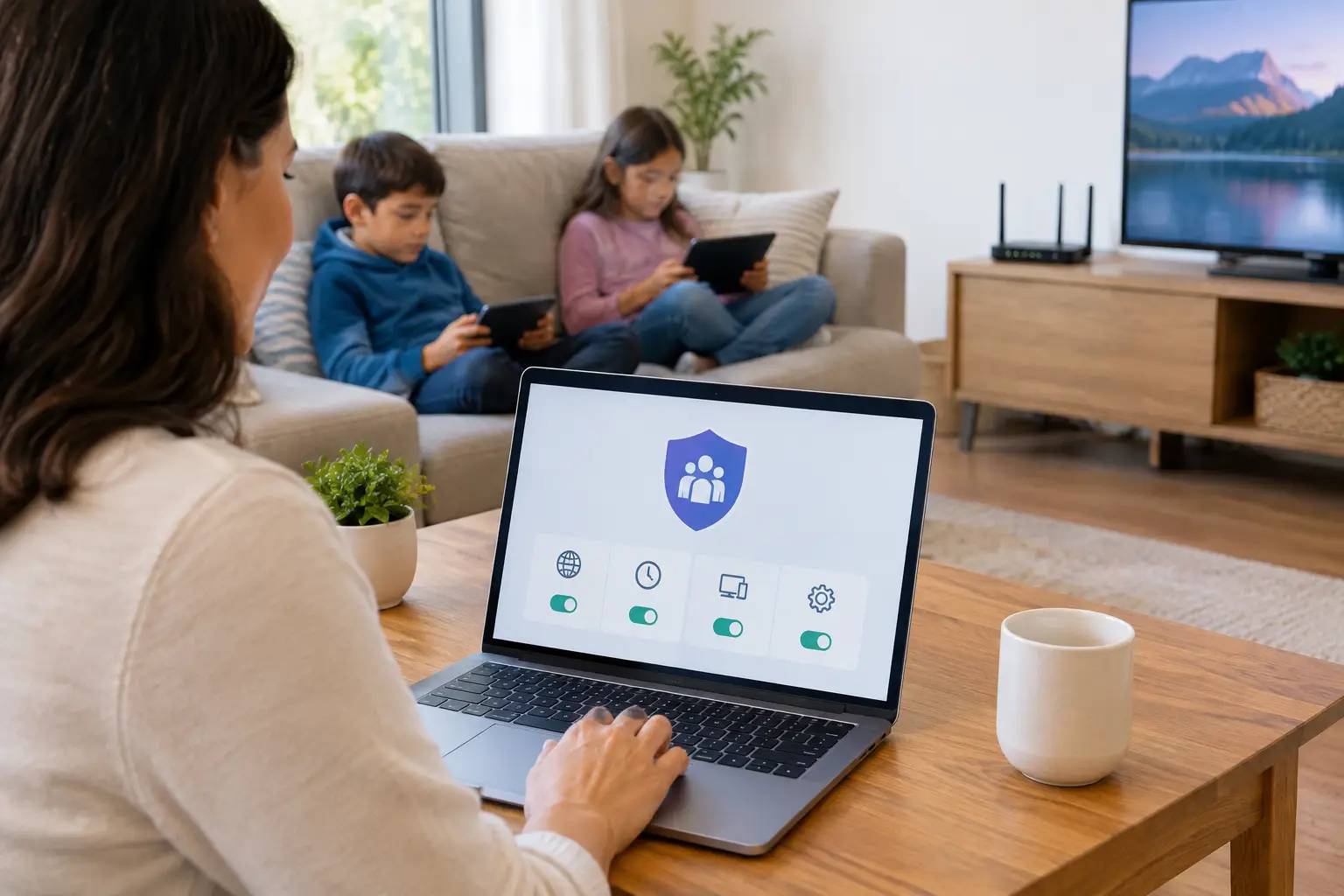
A child can move from a smart TV to a tablet, game console, and phone in a single afternoon. That is why learning how to set parental controls is less about finding one switch and more about covering the places your family actually goes online.
The most useful setup combines controls on home Wi-Fi, individual devices, and the apps or services your child uses. Each layer catches something the others may miss. Start with the devices used most often, then build outward. You do not need to lock down every screen on day one.
Start with a family plan, not just an app
Parental controls work best when they support clear household rules. Before changing settings, decide what you want them to do. For a younger child, that may mean blocking mature content and requiring approval before new apps are installed. For an older child, it may be more about limiting overnight screen time, reducing distractions during homework, and keeping spending under control.
It also helps to separate three different goals that are often grouped together:
- Content filters try to block websites, videos, apps, and search results that are not age-appropriate.
- Time controls set schedules, daily limits, or internet pauses.
- Purchase and privacy controls restrict app downloads, in-game spending, location sharing, and who can contact a child.
No filter is perfect. A blocked site may be harmless, while something inappropriate occasionally gets through. Think of these tools as guardrails, not a substitute for checking in with your child about what they see and who they talk to.
Use home Wi-Fi controls as the first layer
Many modern routers and mesh Wi-Fi systems include a companion app with parental-control features. Look for sections labeled Family, Parental Controls, Profiles, Devices, or Security. You can usually create a profile for each child and assign their phone, tablet, console, or computer to it.
From there, common options include pausing internet access, setting bedtime schedules, and applying basic category filters. A Wi-Fi pause can be especially practical at dinner, during homework, or overnight. It turns off internet access for selected devices without taking the entire household offline.
To set parental controls through your router, open its mobile app or web-based settings page, create a child profile, add the correct devices, and choose a schedule or filter level. Test the result on one device before applying it across the house. Device names can be confusing, especially when several phones or streaming sticks have similar names.
Router controls have an important limitation: they only work while the device is on your home Wi-Fi. A phone using cellular data, a tablet connected to school Wi-Fi, or a gaming laptop at a friend’s house will not follow those home-network rules. That is why device-level controls still matter.
Also, do not assume every router offers the same tools. Some include only scheduling, while others offer web filtering and activity reports. Features may require a paid security subscription. Read what is included before relying on a feature you may not have.
Set controls on phones, tablets, and computers
Device settings are usually the best place to manage screen time, app approvals, and age-based content. They continue to work away from home and can be harder for a child to bypass than a simple Wi-Fi schedule.
Apple devices
On an iPhone, iPad, or Mac, use Apple’s Screen Time settings. A parent can set downtime, app limits, communication limits, and content restrictions. If your family uses Apple’s family account features, a parent can also approve downloads and purchases from their own device.
Use a Screen Time passcode that is different from the device unlock code. If both codes are the same, changing the limits becomes much easier. Review the account age and date of birth as well, since age-based restrictions depend on accurate information.
Android devices and Chromebooks
For Android phones, tablets, and many Chromebooks, Google Family Link is the central tool. It can manage app approvals, daily device limits, bedtime schedules, web browsing settings, and location sharing when enabled.
Set up the child’s own supervised Google account rather than signing them into a parent’s account. A shared adult account makes it difficult to apply the right limits and can expose personal email, photos, payment methods, and search history.
Windows computers
Windows includes family settings connected to a Microsoft family group. These can help with screen-time limits, content filters, app and game ratings, and purchase approvals. Make sure the child uses a standard account, not an administrator account. An administrator can often change settings or install software without approval.
For any computer, create separate accounts for each person. Beyond parental controls, separate logins keep school files, browser history, saved passwords, and personal settings from being mixed together.
Do not skip streaming and gaming accounts
A surprising amount of viewing and communication happens inside streaming apps and games, not in a web browser. A router filter cannot reliably manage everything that occurs within those services.
On a smart TV or streaming device, create a child profile where available and protect the adult profile with a PIN. Set age ratings for movies and shows, and require a PIN for purchases. This is particularly useful if a TV is shared by adults, teenagers, and younger children.
Gaming consoles also have their own family settings. Set limits for game ratings, voice and text chat, friend requests, multiplayer access, and spending. Consider requiring approval for every purchase, including small in-game transactions. Those purchases can add up quickly, and some games make them easy to make without much thought.
If your child watches videos through a general video app, use its supervised or child-focused experience when appropriate. Turn off autoplay if endless recommendations are becoming a problem. Autoplay is not inherently harmful, but it makes time limits harder to stick to.
Secure the setup so it stays in place
Controls are only useful if children cannot easily change or bypass them. Use a strong password for the router’s administrator account and do not share it. Change the default router password if you have never done so. Keep router software updated, since updates can fix security issues and occasionally improve available features.
On each device, use a parent-only passcode for screen-time settings, purchases, and account changes. Avoid saving that code in a note or sharing it in a family group chat. If an older child needs more independence, explain which settings they can manage and which ones stay with the parent.
Watch for common workarounds without turning the process into a game of surveillance. Cellular data can bypass home Wi-Fi schedules. A second browser, private browsing mode, a virtual private network, or an old unused device can also change what controls can see. The practical response is to use the device’s built-in restrictions, keep devices and accounts current, and have regular conversations about expectations.
Review settings after the first week
The first set of limits is rarely perfect. A filter may block a legitimate school site. A bedtime schedule may conflict with a late practice or a group project. An older child may need access to a messaging app that a younger child does not.
Check the settings after a week and ask what is working and what feels unreasonable. That does not mean every limit should be negotiated away. It means the rules should fit real life well enough that everyone can follow them.
As children get older, move gradually from automatic blocks toward shared expectations and more privacy. A 7-year-old and a 16-year-old should not have the same setup. The goal is not to monitor every click forever. It is to create a safer starting point while helping kids build the judgment they will need on every network, not just yours.
A few well-chosen controls, checked occasionally and paired with calm conversations, will usually serve a family better than an elaborate system nobody understands or maintains.