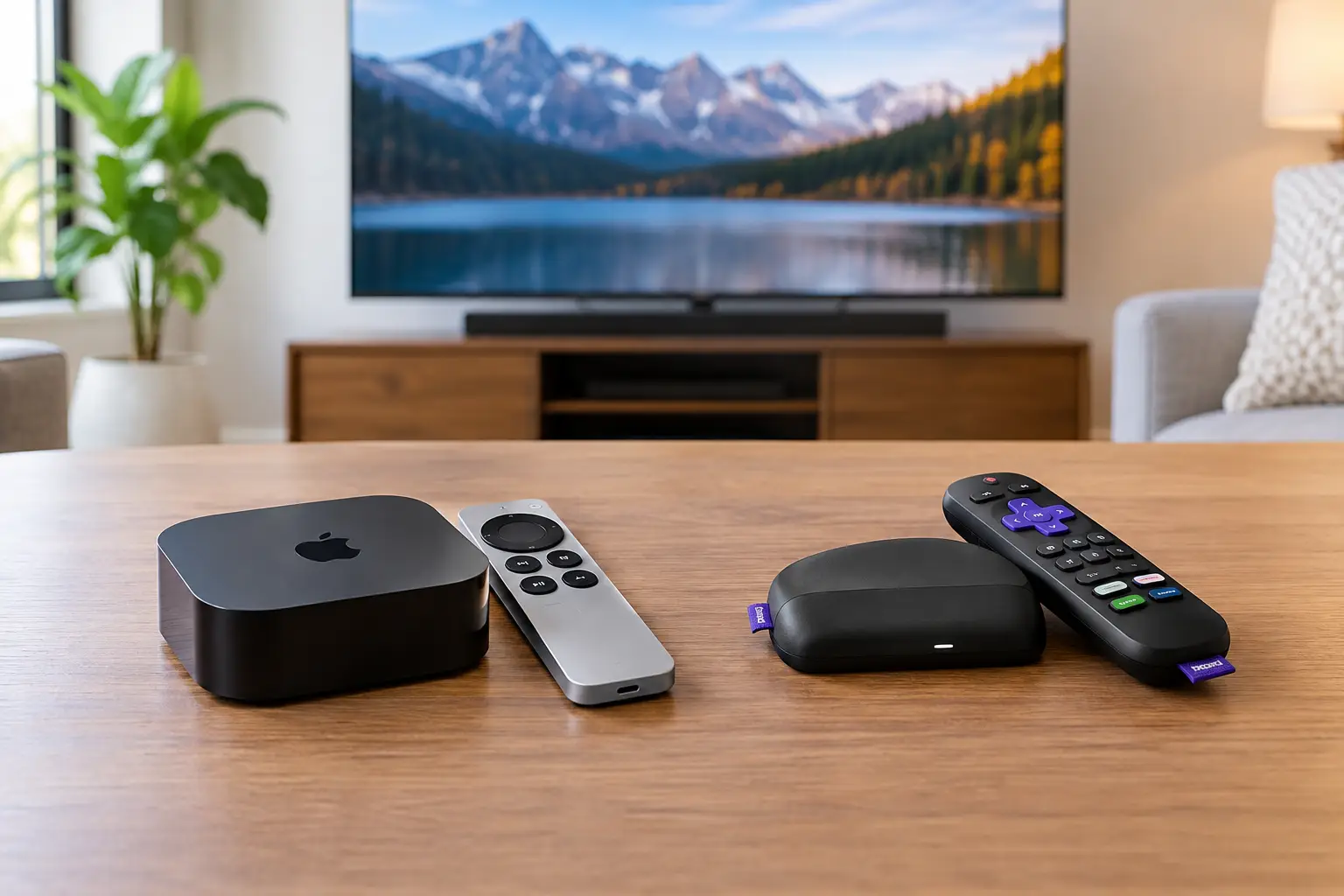
When people search for apple tv roku, they may be asking two different questions: Can a Roku play Apple TV content, or should they buy an Apple TV device instead of a Roku? The short answer is yes, Roku devices can use the Apple TV app, and no, Apple TV hardware is not required to watch Apple TV+.
That distinction matters because the Apple TV app, Apple TV+, and an Apple TV streaming box are related but separate things. Once you know which one you need, choosing equipment and getting it working is usually straightforward.
Apple TV App on Roku: What You Can Watch
Most current Roku players and Roku TVs support the Apple TV app. After adding it from the Roku Channel Store and signing in with an Apple Account, you can watch Apple TV+ originals and any eligible movies or shows you have purchased or rented through Apple.
Apple TV+ is Apple’s subscription streaming service. It includes original series, movies, documentaries, and children’s programming. The Apple TV app is the place where you watch that service, but it can also serve as a library for Apple purchases and, in some cases, other subscriptions connected to your Apple Account.
You do not need an iPhone, iPad, or Mac to use the app on Roku. You do need an Apple Account and an active Apple TV+ subscription if you want to watch the subscription catalog. If you only want to access a movie you previously bought from Apple, a separate Apple TV+ subscription may not be necessary.
The exact features available can vary by Roku model, software version, and region. Older Roku hardware may not support the app or may stop receiving updates over time. If the Apple TV app does not appear in the Channel Store, check the Roku model number and make sure the device has installed its latest system update.
Apple TV Device vs. Roku: The Real Difference
An Apple TV is a streaming device made by Apple. It connects to your television through HDMI, much like a Roku Streaming Stick, Roku Ultra, or built-in Roku TV platform. Roku is both a device brand and a streaming operating system used in many televisions.
Both can stream major services, including Apple TV+, Netflix, Hulu, Max, YouTube, and live TV apps. For most households, the choice is less about which device has more apps and more about the experience you prefer.
Roku is often the simpler and less expensive choice. Its home screen is easy to understand, it works well across different phone brands, and it gives equal visibility to a wide range of streaming services. It is a practical fit for a guest room, a secondary TV, or a household that wants a familiar, straightforward menu.
Apple TV hardware costs more, but it can make more sense for people already using Apple devices. It integrates closely with iPhones, iPads, AirPods, HomePods, and Apple Home smart-home accessories. Features such as AirPlay let you send photos, videos, or audio from an Apple device to the TV with minimal setup. The Apple TV interface also tends to feel faster than many entry-level streaming devices.
Neither option is automatically better. A Roku can deliver excellent 4K streaming at a lower upfront cost. An Apple TV can be worth the extra money if your household values Apple ecosystem features, prefers its remote and interface, or wants a more powerful device for a main living room TV.
How to Set Up Apple TV on Roku
Start by connecting the Roku to your TV and home Wi-Fi, then install any available Roku software update. From the Roku home screen, search for the Apple TV app in Streaming Channels and add it.
Open the app and choose the sign-in option. Roku may display a QR code or a code that you enter on a phone, tablet, or computer. Sign in with the Apple Account associated with your Apple TV+ subscription or purchased content. Once the account is verified, the app should load your available library.
If you are subscribing for the first time through Roku, pay attention to where billing is handled. You may be able to subscribe directly through Apple or through Roku, depending on the offer and device. Direct billing through Apple can be easier to manage if you already use Apple subscriptions, while Roku billing may be convenient if you prefer keeping streaming charges in one Roku account. The content itself is generally the same, but cancellation steps can differ.
For the best picture quality, make sure your TV, Roku, and HDMI connection all support the resolution you expect. A 4K Roku connected to an older 1080p television will still stream in 1080p. Similarly, some advanced video formats depend on the specific Roku model and television, not just the Apple TV app.
Internet Speed for Apple TV+ and 4K Streaming
Apple TV+ can stream in high definition or 4K, depending on your device, display, and connection. The bigger concern for most homes is not one stream by itself. It is what else is happening on the network at the same time.
For a typical household, 100 Mbps is a practical starting point for streaming, browsing, video calls, and connected devices. Homes with several people streaming in 4K, gaming online, working from home, or using cloud backups will usually be better served by 300 to 500 Mbps. A household with very heavy use across many devices may benefit from 1 Gig service or higher.
A speed test can look great while streaming still buffers. That usually points to Wi-Fi coverage rather than the internet plan. If the Roku is far from the router, behind a TV cabinet, or using a crowded wireless band, it may receive a weak signal. Moving the router to a more central location, using a mesh Wi-Fi system, or connecting a compatible Roku by Ethernet can make a bigger difference than upgrading speed alone.
If you use Wi-Fi, connect the Roku to the 5 GHz band when it is within reasonable range of the router. This band is often less congested and can handle higher streaming speeds, though it does not travel through walls as well as 2.4 GHz. Newer Roku models may also support Wi-Fi 6, but that only helps when the home router supports it too.
Common Apple TV Roku Problems and Fixes
The most common problem is confusion between the Apple TV app and Apple TV+. If the app opens but asks you to subscribe, that does not mean the Roku is malfunctioning. It means the content selected requires an Apple TV+ membership or a separate rental, purchase, or linked subscription.
If the app will not load, restart the Roku first. Use the Roku settings menu to restart the device rather than simply turning off the television, since many TVs keep power flowing to their built-in Roku system. Then check for a Roku system update and an app update. Removing and reinstalling the Apple TV app can also clear sign-in or loading issues, although you will need to sign in again afterward.
For buffering or blurry video, test another streaming app. If every app has trouble, the issue is likely your internet connection or Wi-Fi signal. If only Apple TV has trouble, restart the app and device, then verify that the service is not experiencing a temporary outage. Avoid repeatedly changing Roku picture settings while troubleshooting. Those settings rarely fix a weak connection.
Sign-in errors are often caused by using the wrong Apple Account. This can happen in families where one person pays for Apple TV+ but another person is trying to sign in with a different account. Confirm which account has the subscription, purchases, or family-sharing access before resetting passwords or creating a new account.
Is Roku Enough for Apple TV+?
For most viewers, yes. If your goal is simply to watch Apple TV+ on a reliable, affordable streaming device, a compatible Roku is enough. You can install the Apple TV app, sign in, and watch without buying Apple hardware.
Choose an Apple TV device when its Apple-specific conveniences matter to you, not because you assume it provides access to different Apple TV+ shows. The service catalog is tied to your account and location, while video quality depends on device compatibility, the television, and the connection.
Before replacing a working Roku, try the Apple TV app first. If it streams well, looks good on your TV, and gives everyone in the household an interface they can use, you may already have exactly what you need.